2. Client orders
- Order registration
- Delivery via Terminal
- Multiple Pickup or Delivery Addresses – Multibooking
- Active orders
- Save to the customer database
- Obtaining GPS data for a customer order
- Search / Filters and Their Use
- Internal profit
- Adding order to the trip
Order registration
- Registering a new customer order
- New order window
- Adding a new customer
- Filling in a new customer card with VAT number
1. Registering a New Customer Order
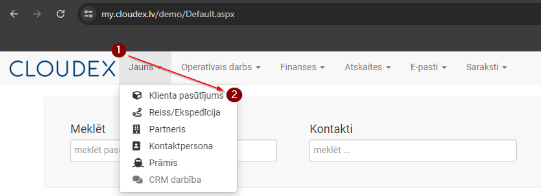
- Click "New" in the top navigation bar.
- From the additional functions, select "Customer Order".
Required sequence: New → Customer Order. A window will open where you need to enter the order information accordingly.
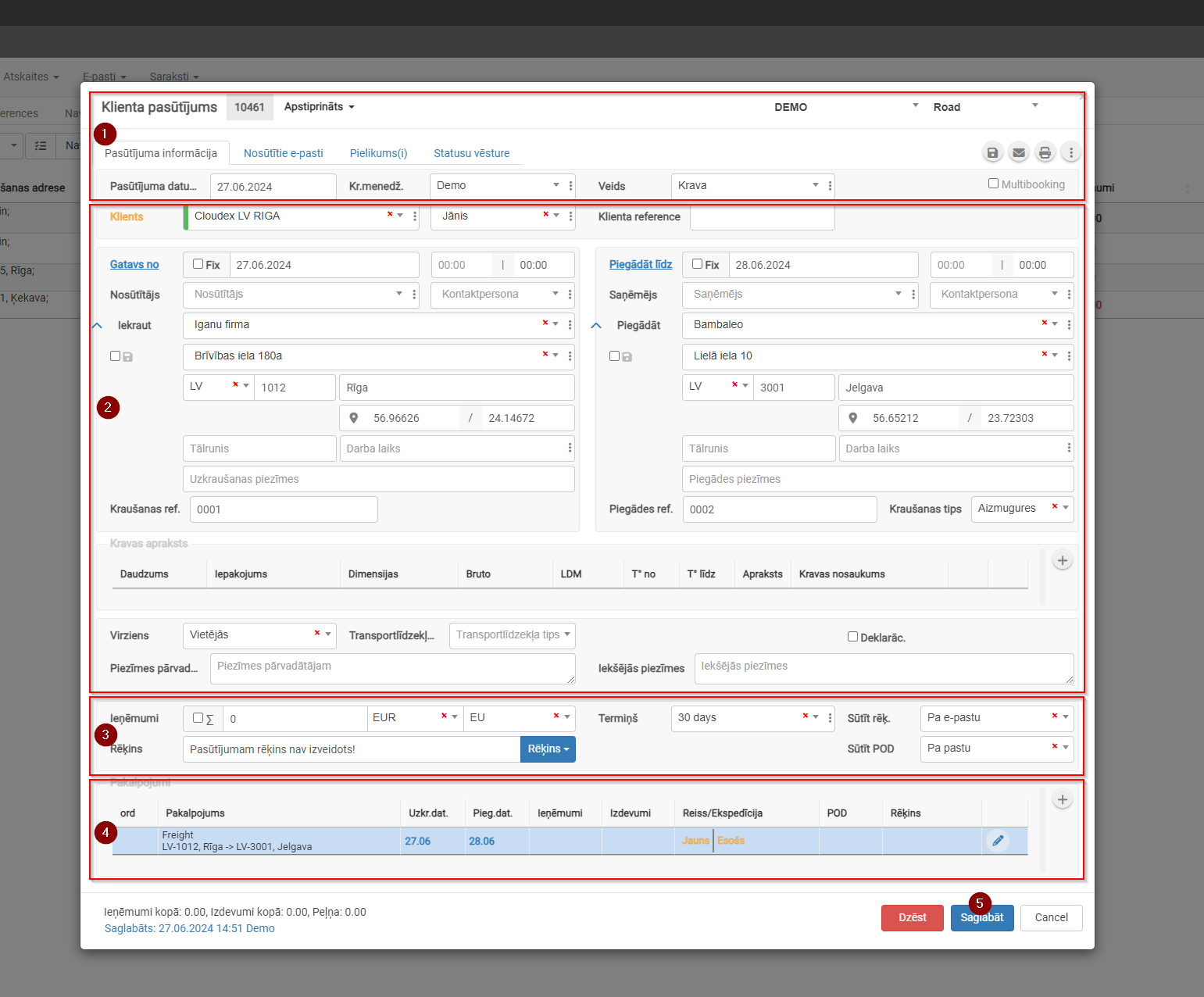
2. New Order Window
- Customer order description
- Customer order basic information
- Revenue section
- Services / Tasks
- Save
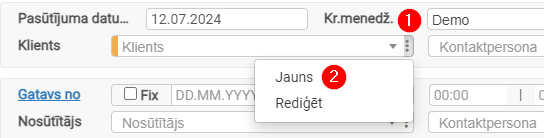
3. Adding a New Customer
- Click the three dots to open additional options.
- Click "New" to open the "New Customer" card.
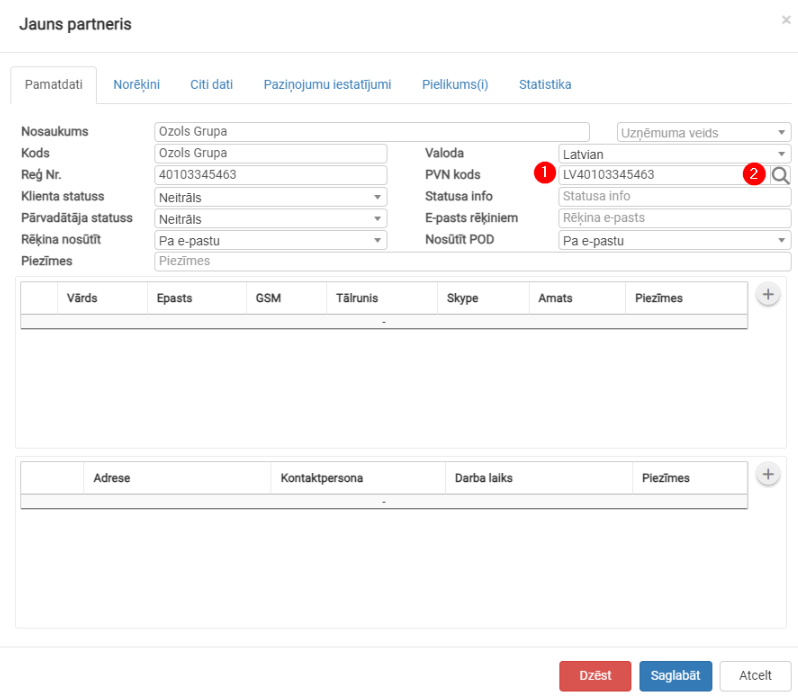
4. Filling in a New Customer Card with VAT Number
- Paste the VAT number.
- Click the button
 to automatically fill in the fields.

Reference link: https://doc.ozols.lv/link/321#bkmrk--3
Delivery via Terminal
- Delivery via Terminal
- Delivery via Terminal Options
- Services view after adding "Delivery via Terminal"
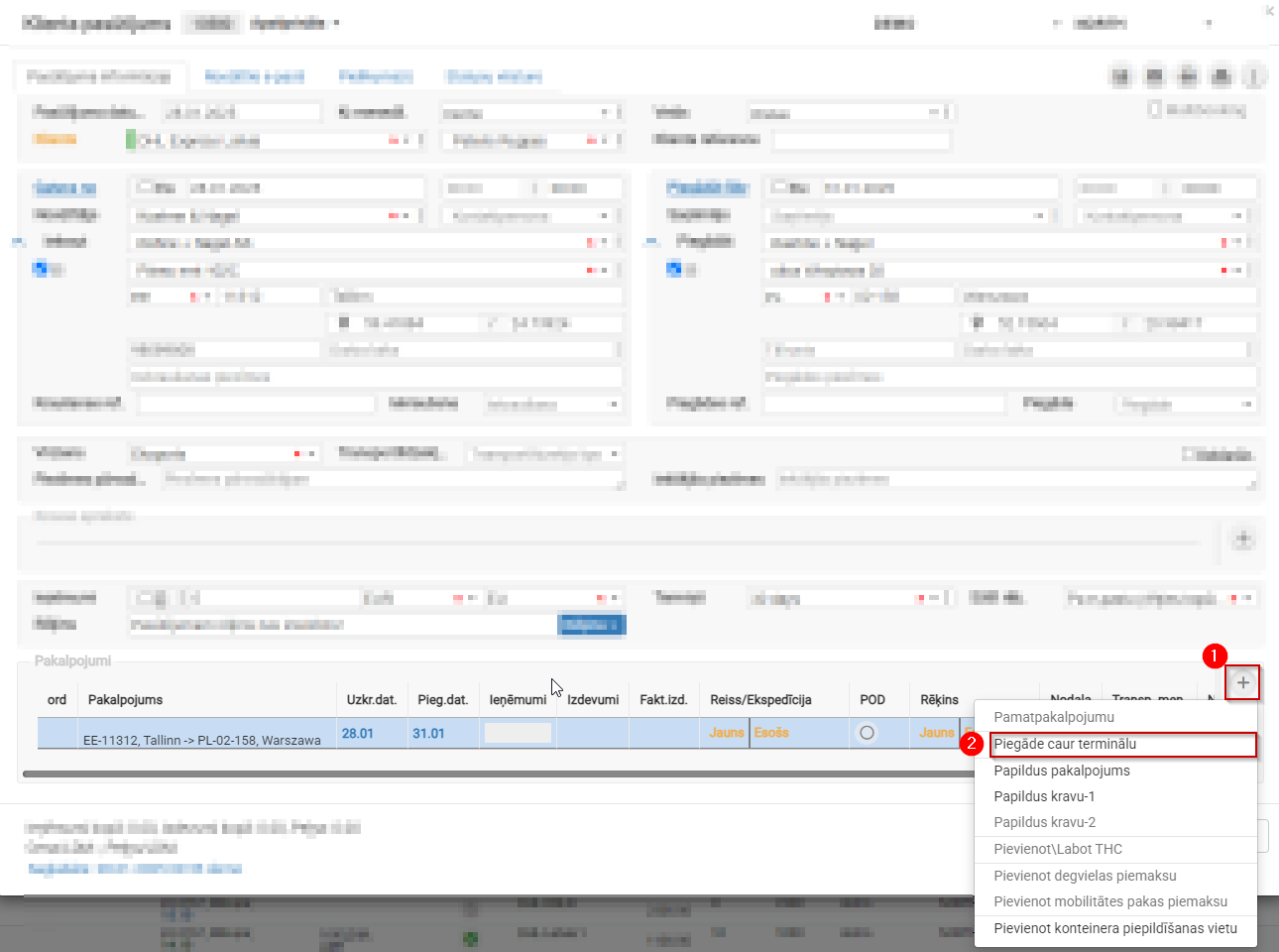
1. Delivery via Terminal
Customer Order → Services → + →Delivery via Terminal
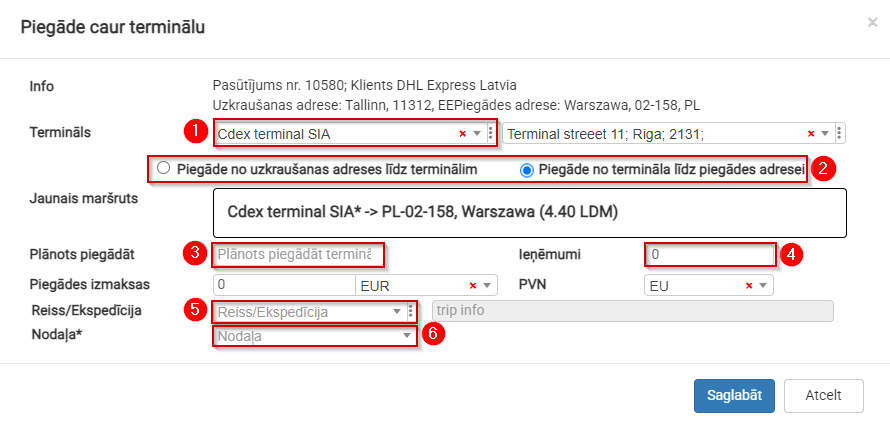
2. Delivery via Terminal Options
- Select the required terminal; the address will be filled in automatically.
- Split the route EE11312 Tallinn → PL-02-158 into two parts.
- Planned delivery deadline to the terminal.
- Specify the amount allocated for the stage from the terminal to the delivery address.
- If you know which truck will transport the cargo, you can create a new trip or add it to an existing trip.
- Assign it to the department responsible for delivery from the terminal to the delivery address.
3. Services View After Adding "Delivery via Terminal"
The overall delivery process is divided into two stages, and each stage is assigned a specific amount:
- Total amount to be received from the customer.
- Revenue distributed among departments.
- Departments responsible for specific delivery stages.

Multiple Pickup or Delivery Addresses – Multibooking
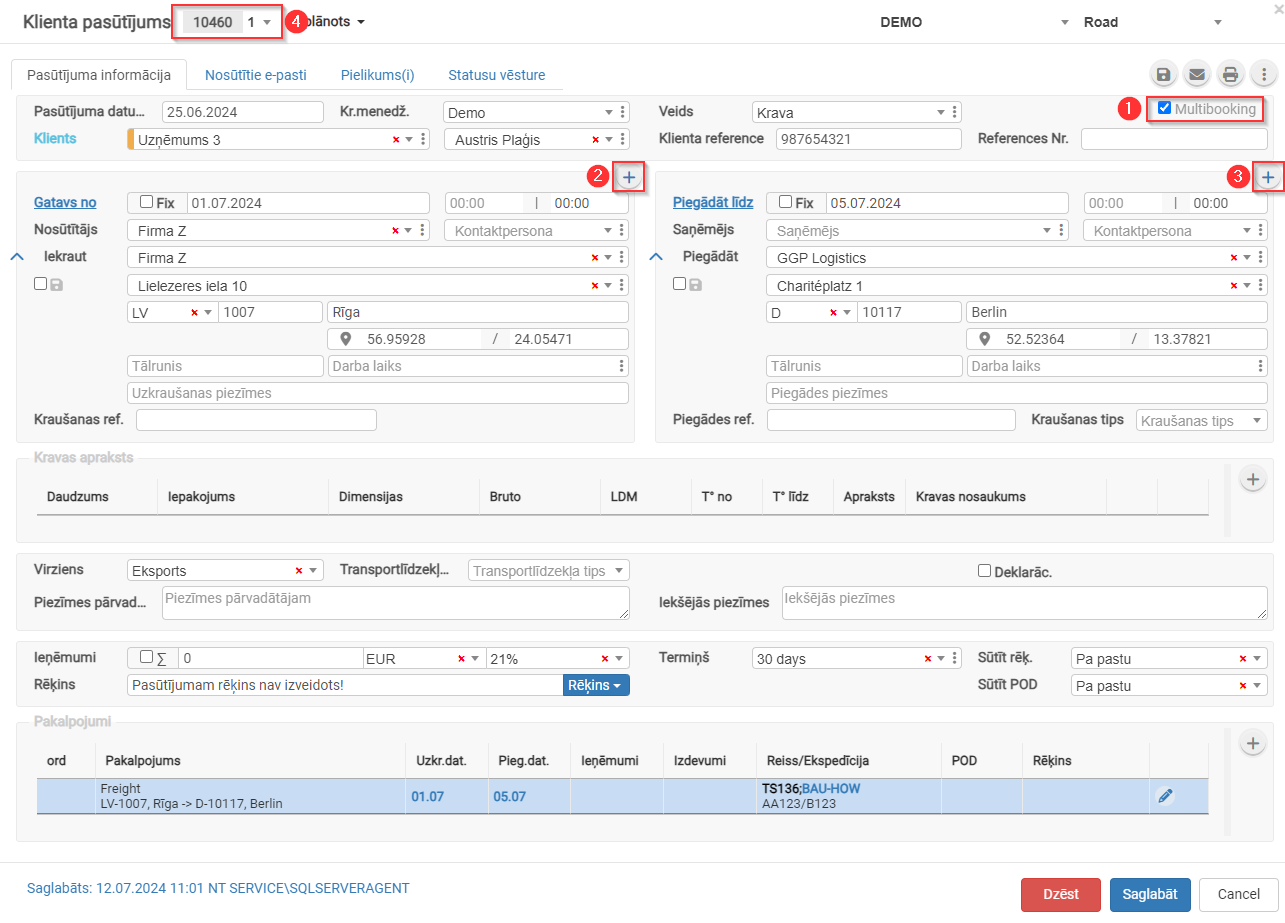
Multibooking is used when a single customer order includes multiple pickup or delivery addresses.
- Check the box
 for Multibooking.
 - Click
 to add additional pickup addresses.
 - Click to add additional delivery addresses.
- The order number will be assigned a sub-number. Clicking
 allows you to switch between multibooking orders.
 - Reference link: https://doc.ozols.lv/link/348#bkmrk-


Active orders
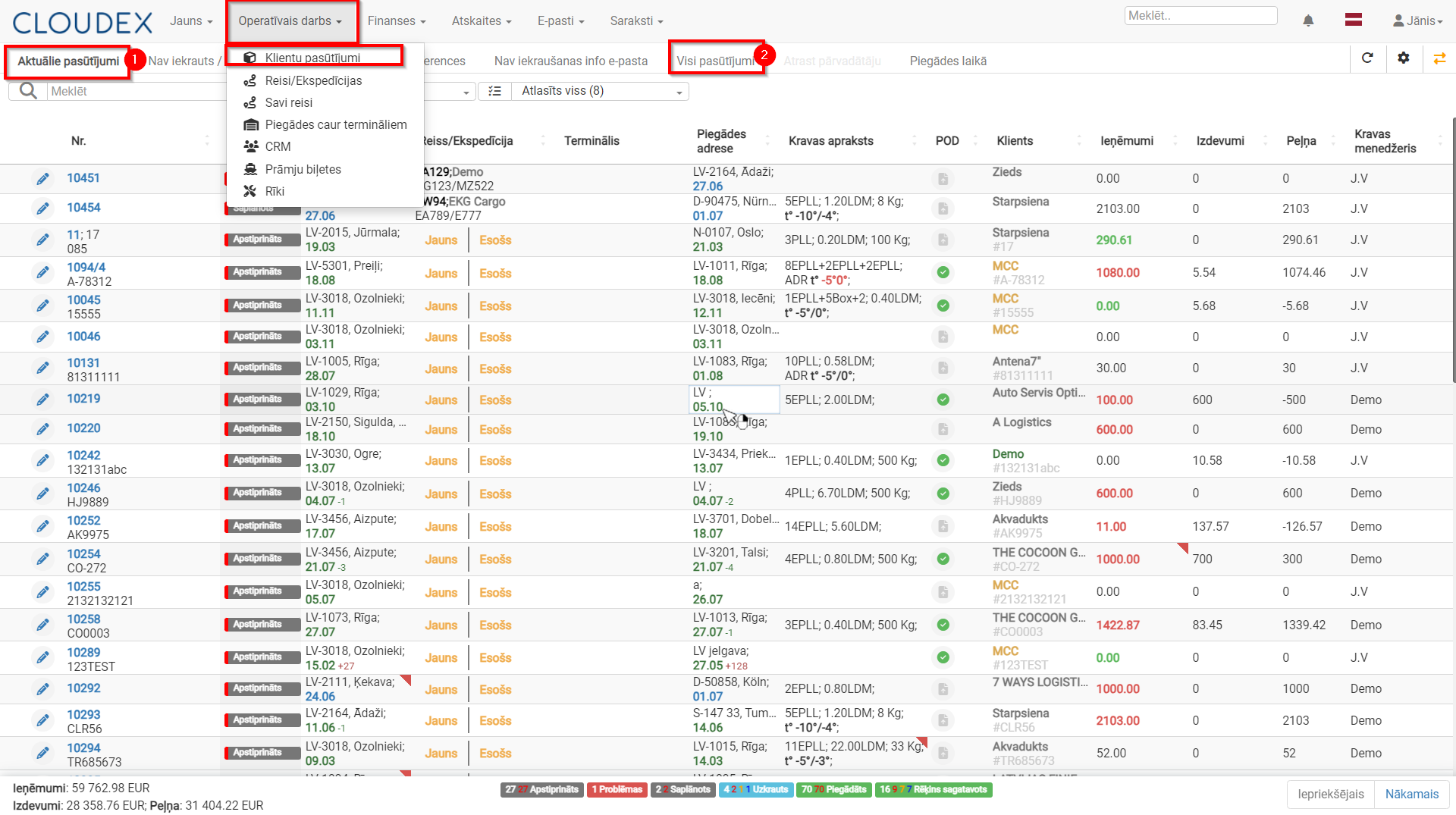
- Customer Order Classification
- Active order statuses
- Additional Options Without Opening the Order
1. Customer Order Classification
Customer orders are divided into 2 groups:
- Active orders – this list displays all orders that are in progress (with various statuses). Orders remain in this section until the invoice has been sent.
- All Orders – this section also includes completed orders.
2. Active order Statuses
- New – status assigned when the customer adds a new shipment through the customer portal.
- Confirmed – the manager confirms the shipment added by the customer, or the manager creates a new shipment manually.
- Planned – when the shipment is assigned to a trip/route.
- Loaded – when the shipment has been loaded.
- Delivered – when delivery of the shipment is confirmed.
- Invoice Prepared – after delivery, the invoice is prepared and issued.
- Issues – this status appears when something does not go as planned. It is highlighted in red to draw the manager’s attention.
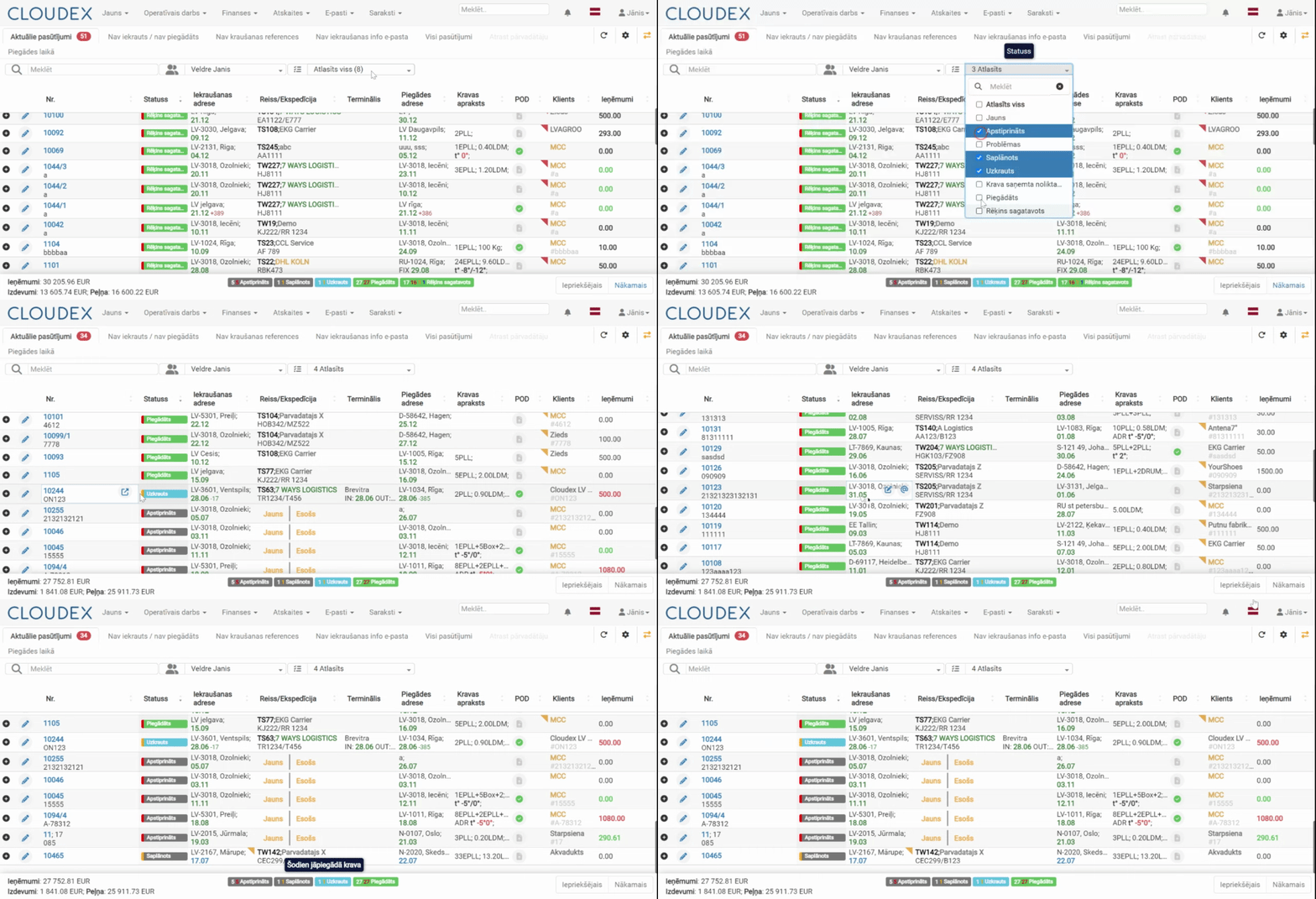
2.1. Next Order Status
- The “border” of the order status may be highlighted in blue, green, orange, or red, indicating the status of the next required action.
- A shipment status summary is available below the table. Hovering the mouse cursor over the number of each color displays an explanation, for example: “Delayed shipment delivery”.

Under the “Status” column, when hovering over the current shipment status with the mouse cursor, the system displays the next sequential action that needs to be performed.
3. Additional Options Without Opening the Order
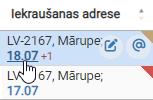
- If the loading date is displayed in blue, it means the shipment has not yet been loaded. Clicking the date opens a window where you can change the planned loading date.

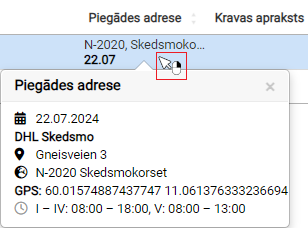
- If, when hovering over information in a column, you see the icon, then right-clicking will display additional information. This option is available in several columns, such as:

- Loading Address
- Delivery Address
- Customer
- Shipment Description
- etc.
- In the POD* column, it is possible to add delivery confirmation documents for the order.
- If a document icon with a red corner appears in the column, it means POD documents need to be added.
* POD – Proof Of Delivery (CMR; B/L; AWB; SMGS)
The invoice issuing description is available here:
OZOLS documentationOutgoing invoices can also be opened through the current orders list, for example, to quickly enter the sending date.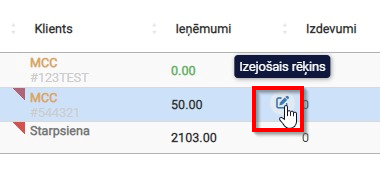
Save to the customer database
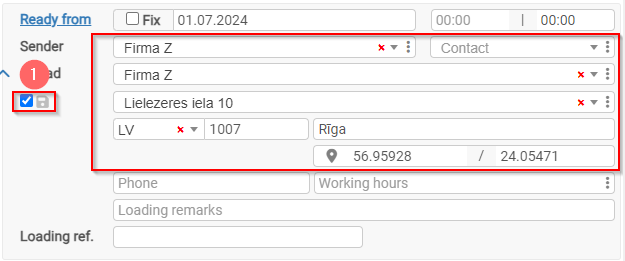
The customer's information will be saved in the database.
- To successfully save the customer's information in the database, you must check the box next to the diskette symbol.
Obtaining GPS data for a customer order
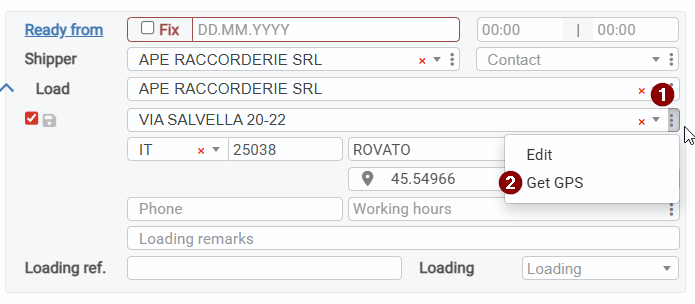
1. Benefits of Obtaining GPS Coordinates
Filling in the GPS coordinates field in logistics and transport systems provides several advantages that improve operational efficiency, transparency, and accuracy. Here are the main benefits of completing the GPS coordinates field:
2. Planning Accuracy
Precise locations can be viewed on the map, making logistics planning and route optimization easier.
3. Trip Route Tracking
The route is visible on the map in real time, helping monitor transport flow and ensuring that the vehicle follows the planned route.
4. Accurate Location Identification
GPS coordinates allow precise identification of the location where the driver must arrive, reducing misunderstandings and increasing delivery accuracy.
5. Automatic Time Recording
The system automatically records the time when the vehicle arrives at and leaves the loading/delivery address, helping improve operational tracking and analysis.
6. Cargo Status Tracking
Time and location data are integrated into cargo statuses, providing a complete overview of cargo movement and delivery status.
7. Automatic Status Changes
The system automatically changes the trip status when the vehicle approaches the loading or delivery address, speeding up the process and reducing manual actions.
8. Downtime Monitoring
GPS data makes it possible to track how long the vehicle stays at the loading or delivery address, helping identify and reduce unproductive downtime.
9. Driver Activity Monitoring
The system can verify whether the driver marks the cargo as loaded or delivered at the specified address by comparing it with the driver’s actual location data.
10. Route Comparison
It is possible to compare the driver’s planned route with the actual route traveled, helping identify deviations and opportunities for route optimization.
11. Customer Portal Functionality
Customers can view the vehicle’s current location and route to the loading/delivery address in the portal, improving transparency and customer satisfaction.
12. These benefits help optimize logistics processes, improve delivery accuracy and efficiency, and provide greater transparency and customer satisfaction.
Search / Filters and Their Use
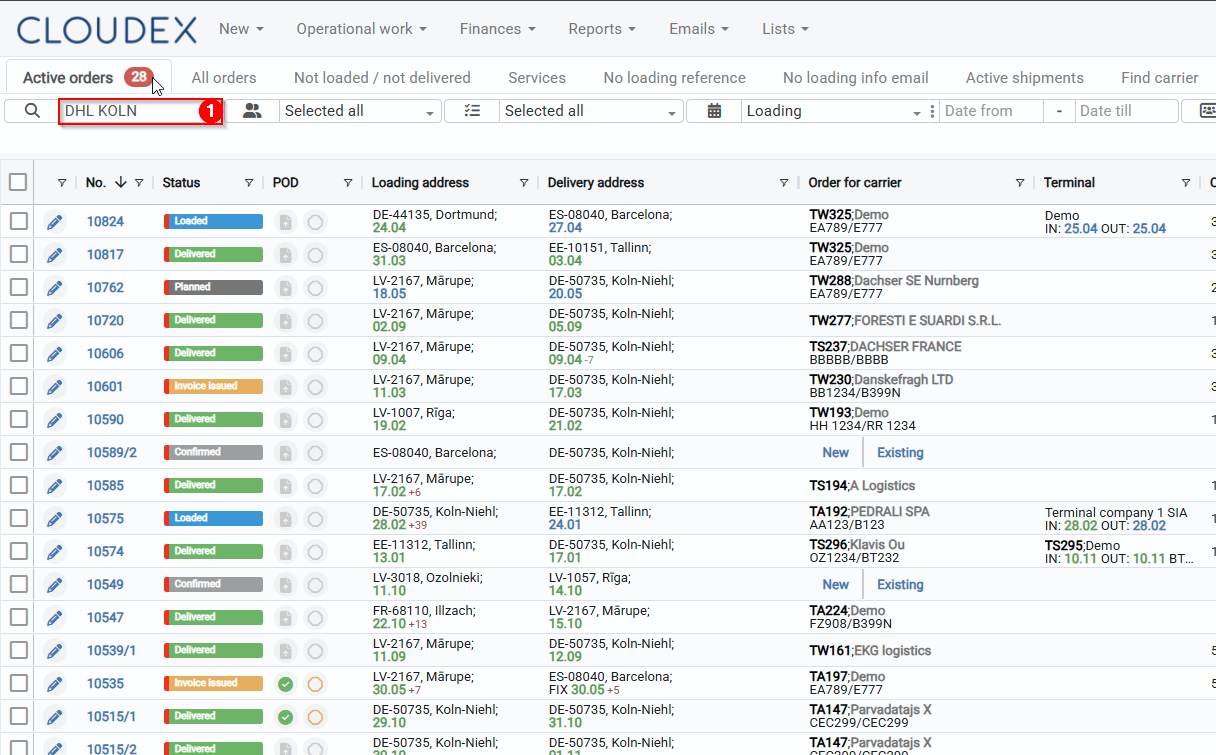
1) Search
Using the search function, it is possible to find all records involving a specific company. By entering the company name into the search field, the system displays all orders in which this company is listed as the supplier, recipient, or in another role. The number 33 indicates that 33 records have been found.
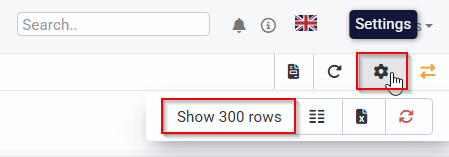
2) Increasing Visibility
By using the option to select how many rows are displayed per page, the visible amount of data can be increased. For example, if we select 300 rows, a larger volume of data will be visible on the screen at once, making it easier to analyze information without switching between pages.
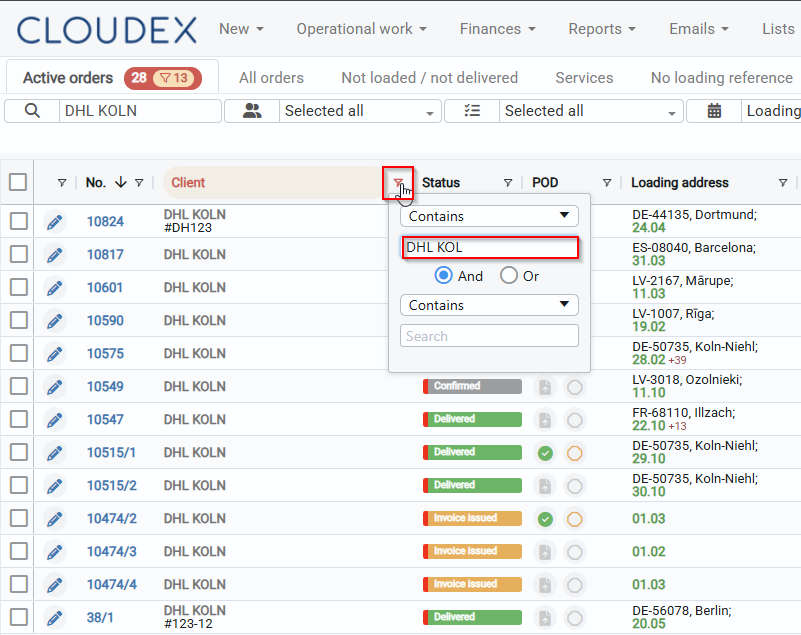
3) Narrowing the Customer List
To make the results more precise, we use the customer filter and select the exact name we are searching for. This narrows the list down only to records related to the specific customer, excluding all others.
Internal profit
Adding “Internal Profit”
-
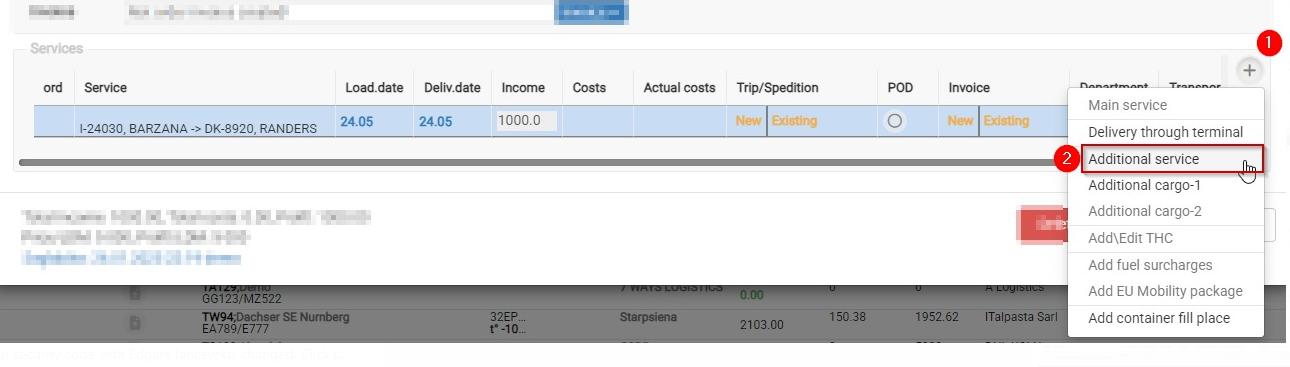
Open the relevant order form and, in the Services section, add a new service.
-
Select the type “Internal Profit”.
-
Enter the profit amount.
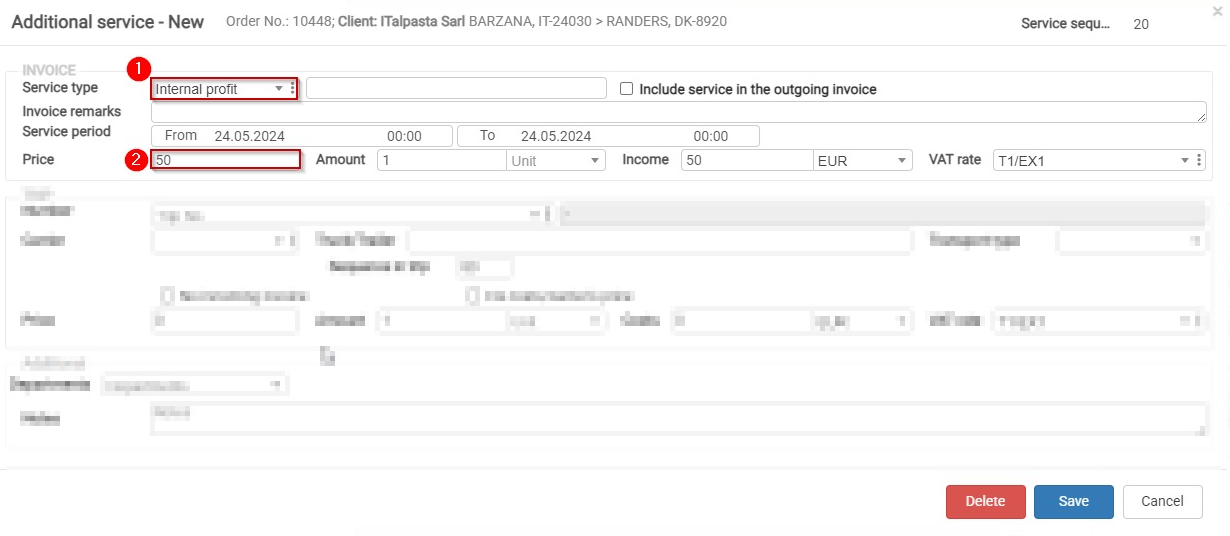
Important! After adding “Internal Profit”, everything should look as shown below:

Adding order to the trip
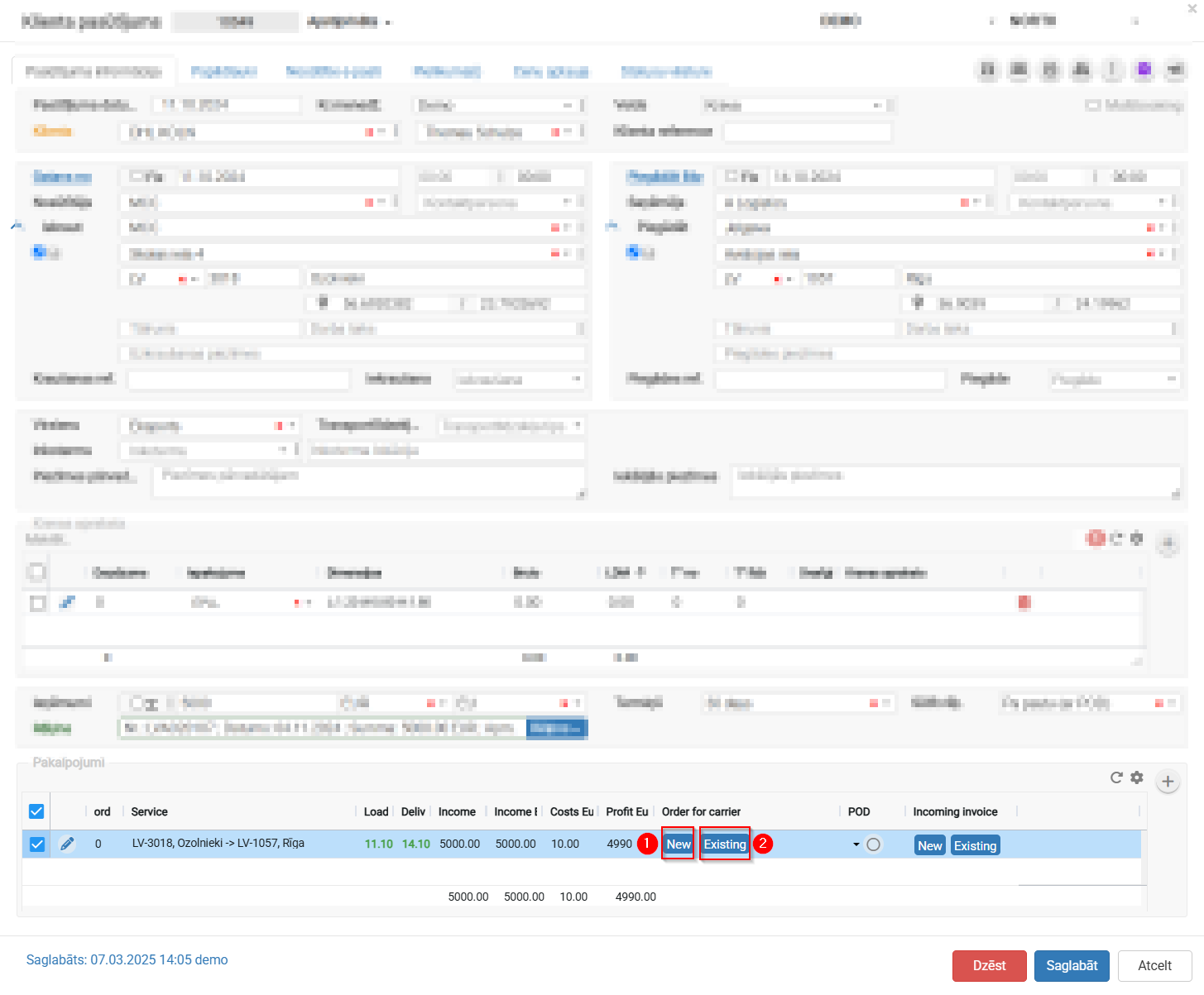
- Open the client order
- Scroll down to the "Services" section at the bottom of the screen.
- In this table you'll see a service row with the route (e.g., LV-3018, Ozolnieki → LV-1057, Riga), loading and unloading dates, income, and costs.
- In the "Order for carrier" column there are two buttons:
- "New"
 — create a new trip/order for the carrier and assign this cargo to it.
 - "Existing"
 — assign this cargo (order) to an already existing trip.
- "New"
- To add the order to an existing trip:
- Click the "Existing" button.
- A window/list will open showing available trips (filterable by route, date, vehicle, etc.).
- Select the matching trip from the list and confirm.
- To create a new trip for this order:
- Click the "New" button.
- The system will create a new carrier order/trip using this client order's data (route, cargo details, dates).
- Click "Save" at the bottom of the screen to confirm the changes.