6. Outgoing invoices (debtors)
Outgoing invoice payments
1. Payment of Outgoing invoices - automated data Import from the Bank
2. Linking Incoming Bank payments with Outgoing invoices
3. Outgoing invoice payment - manual data entry
Important! CLOUDEX TMS provides two options - automated and manual outgoing invoice.
Only one of options can be used for the accounting period!
1. Payment of Outgoing invoices - automated data Import from the Bank
1.1. Export Account report from your Bank
Open your company's Internet Bank > prepare the Bank Account report for the desired period > Export it in ISO format. > Save this document to your computer.
1.2. Open CLOUDEX TMS
-
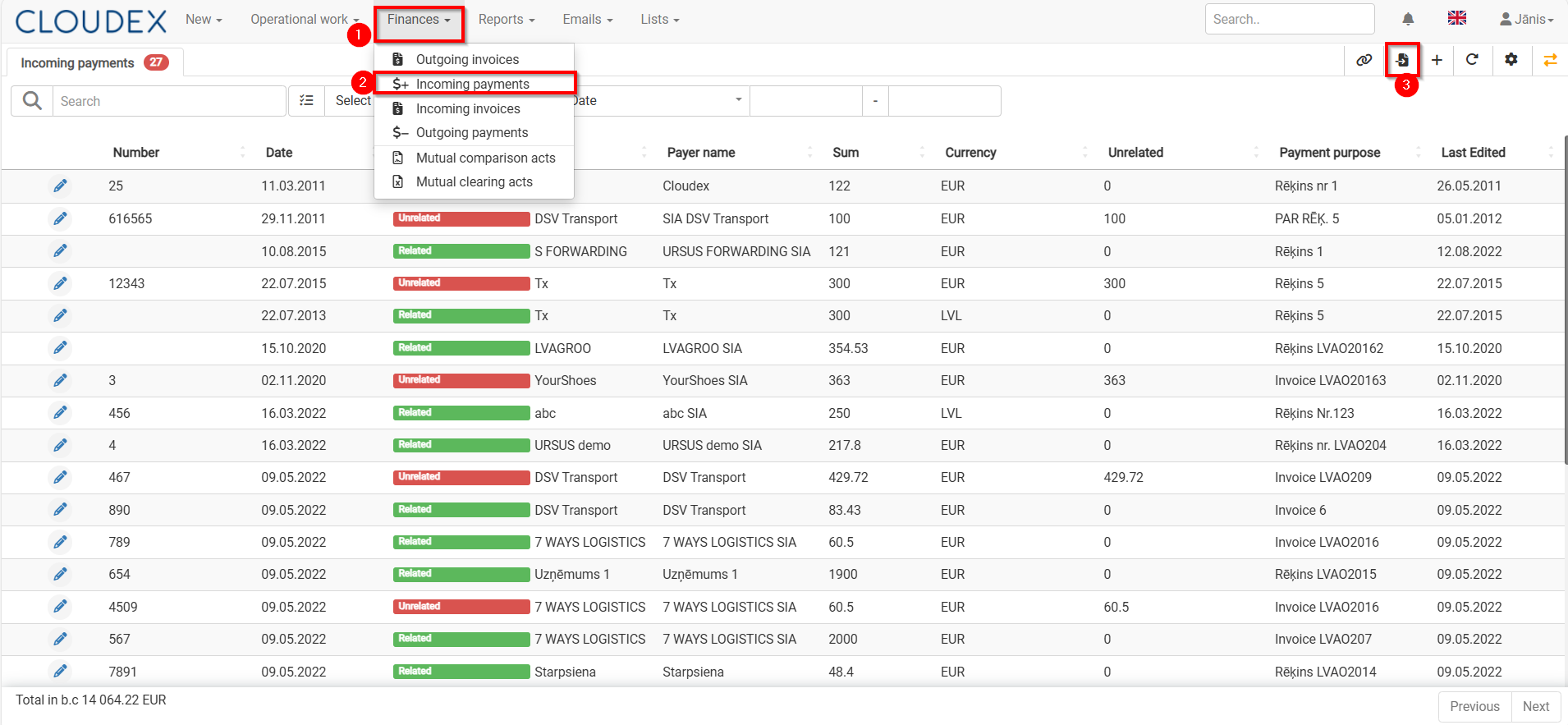
Finance > Incoming payments
-
Import payments from the Bank (using symbol "
 ")
")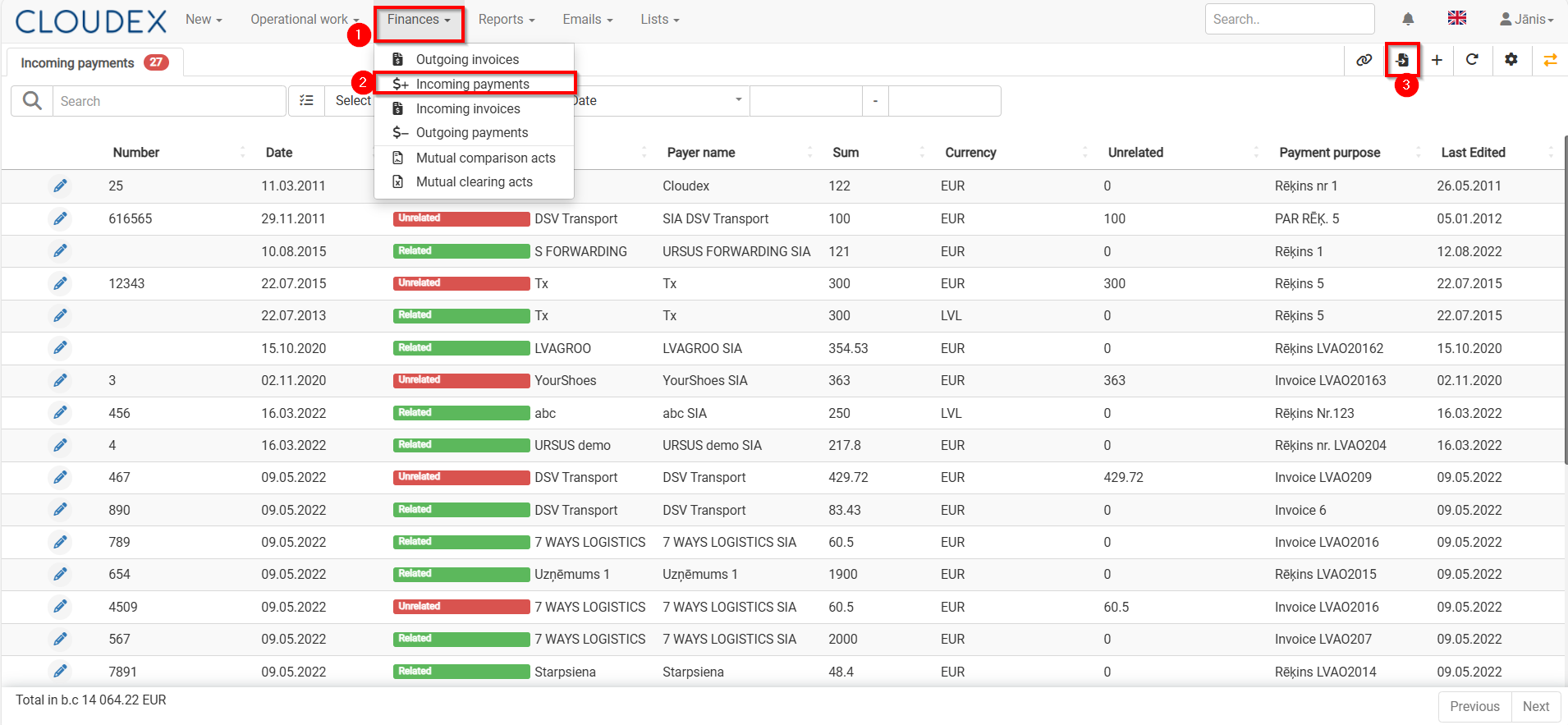 1.3. Import Bank payments
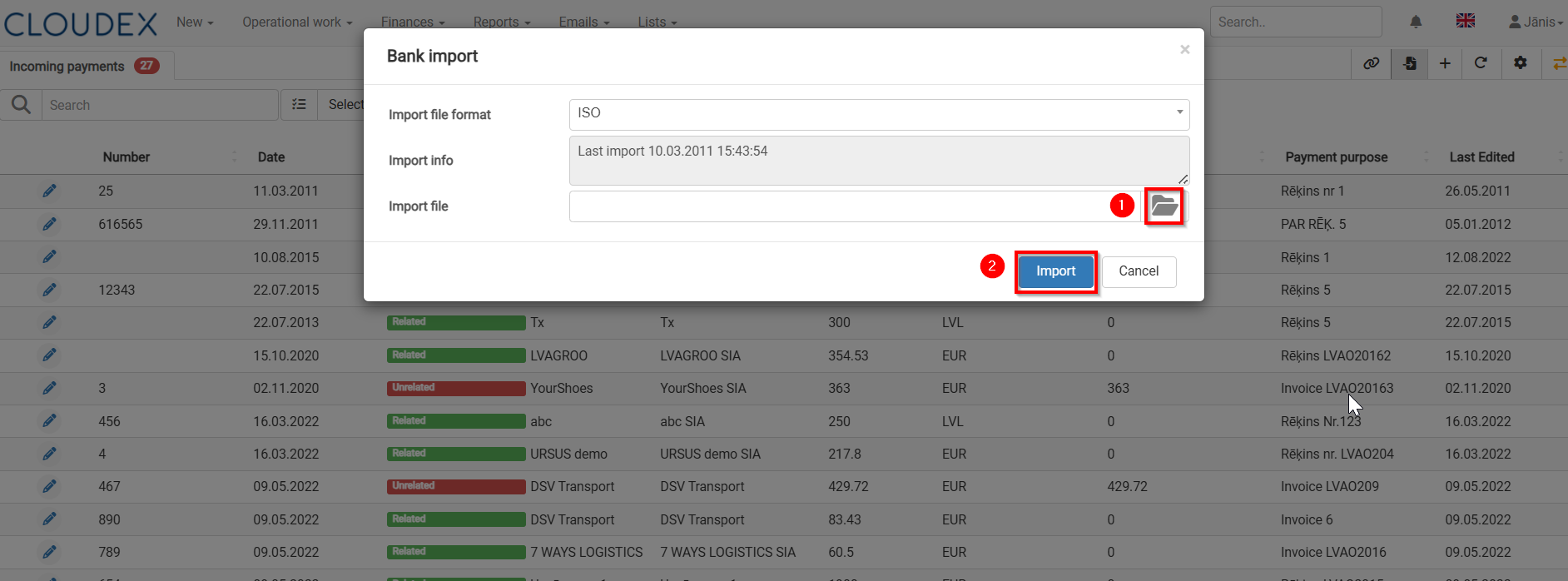
1) Choose the file which you imported from Internet Bank
2) Press Import

2. Linking "Incoming Bank payments" with "Outgoing invoices"
When importing payments from the Internet bank, CLOUDEX TMS creates attachment of invoices, but if the invoices are not attached to the payment amount, then do the attachment according to the instructions bellow.
1) CLOUDEX TMS > Finaces >Incoming payments
2) Filter >show only Unrelated payments "Unrelated" (payments which are not related to invoices)
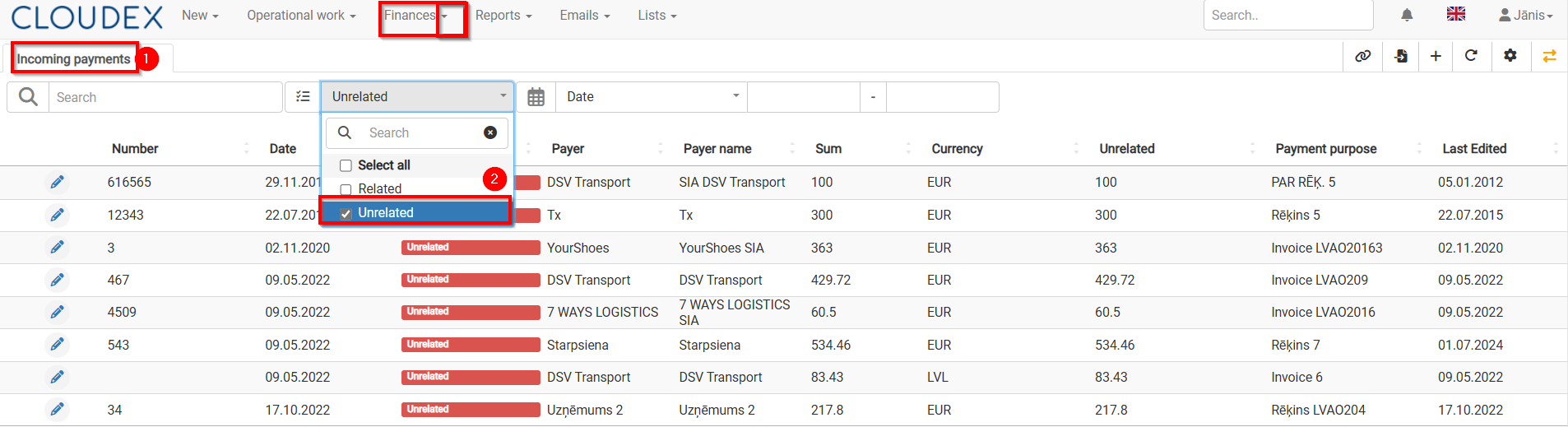
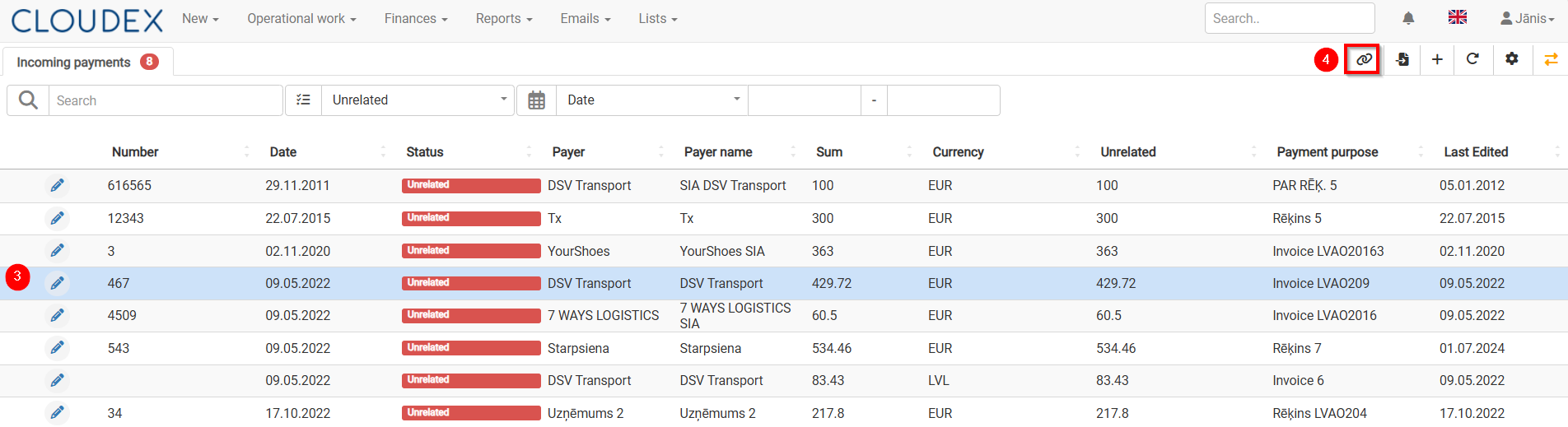
3) Select Incoming Payment which to "Relate" with Invoice
4) Press the button "Relate invoices" 
5) In the list of Invoices, select the appropriate invoice/invoices for which payment has been made, mark them.
6) Selecting "the up arrow" you will be able to relate the invoice to payment.
7) Confirm with the button "Close".
8) With "the green arrows" it is possible to switch to another "Unlinked" payment.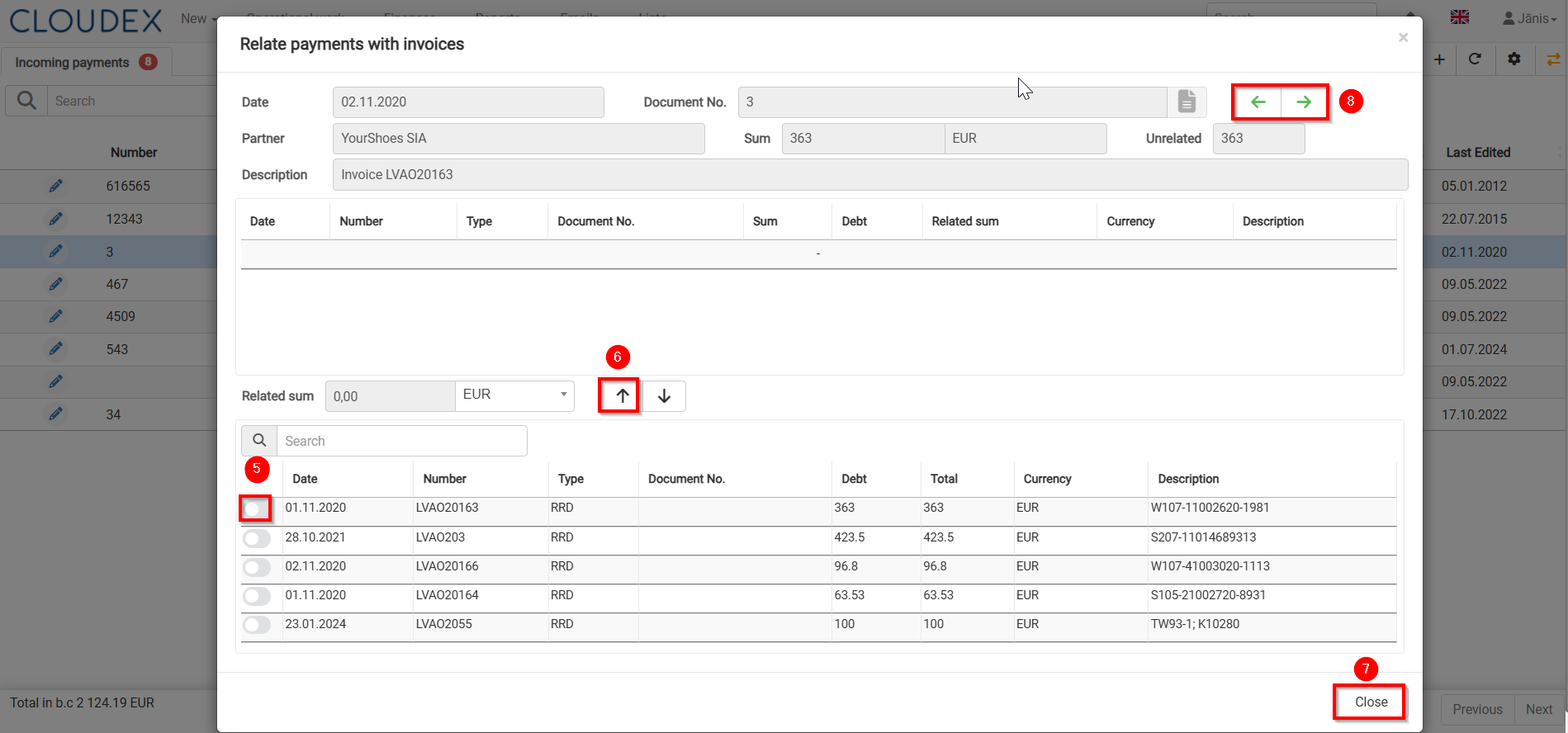
9) With the filter, you can quickly find the required invoice by number, amount, etc.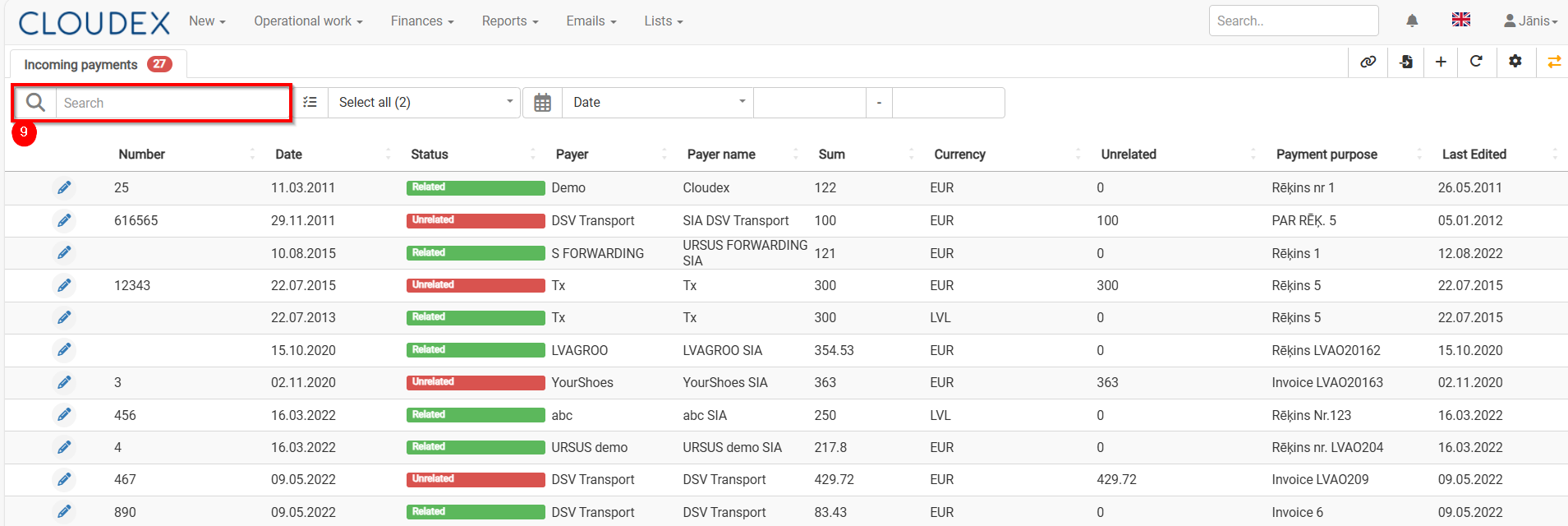
When the Incoming Payment is linked to the corresponding invoice, the amount in the "Unrelated" column in the Bank incomings list will be zero.
3. Outgoing invoice payment - manual data entry
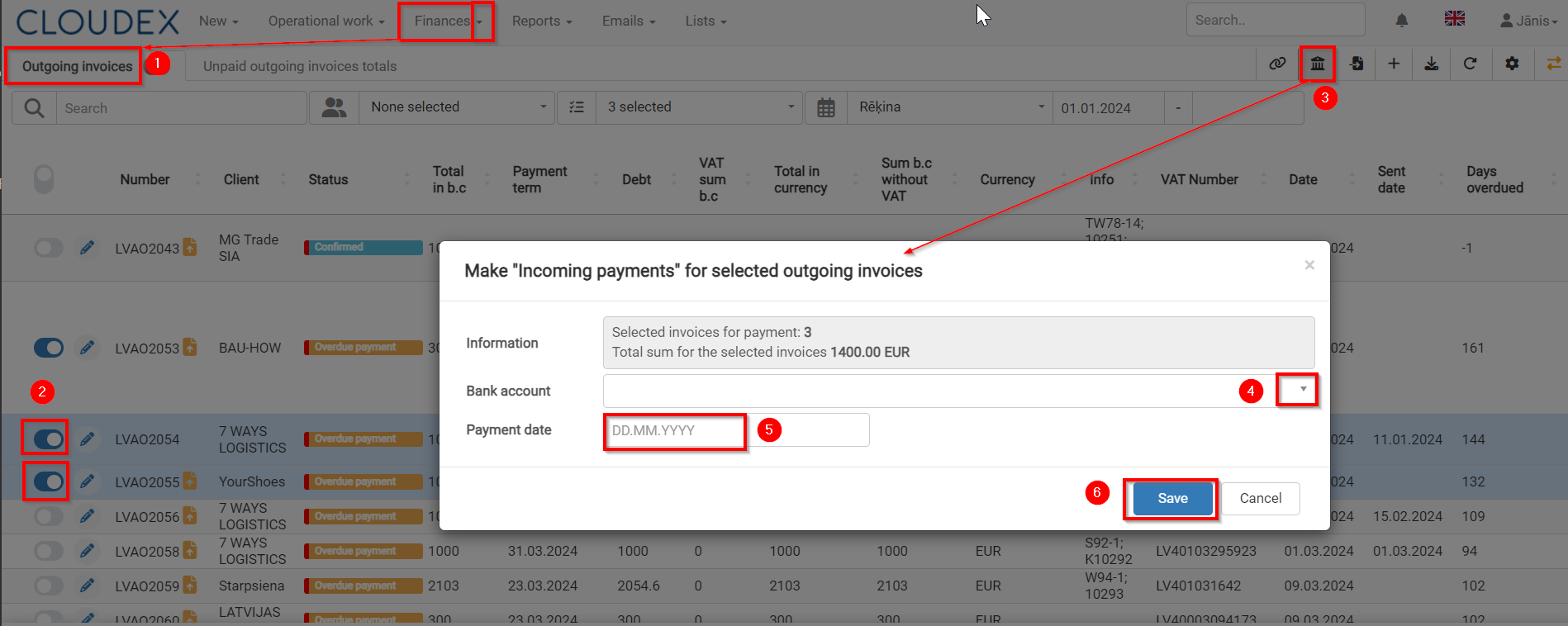
- Go to Finances >Outgoing Invoices
- Mark Outgoing Invoices which are paid
- Choose function "Make Incoming payments for selected outgoing invoice"
- Choose appropriate Bank account, if you have more than one account
- Enter the Payment date.
- Save
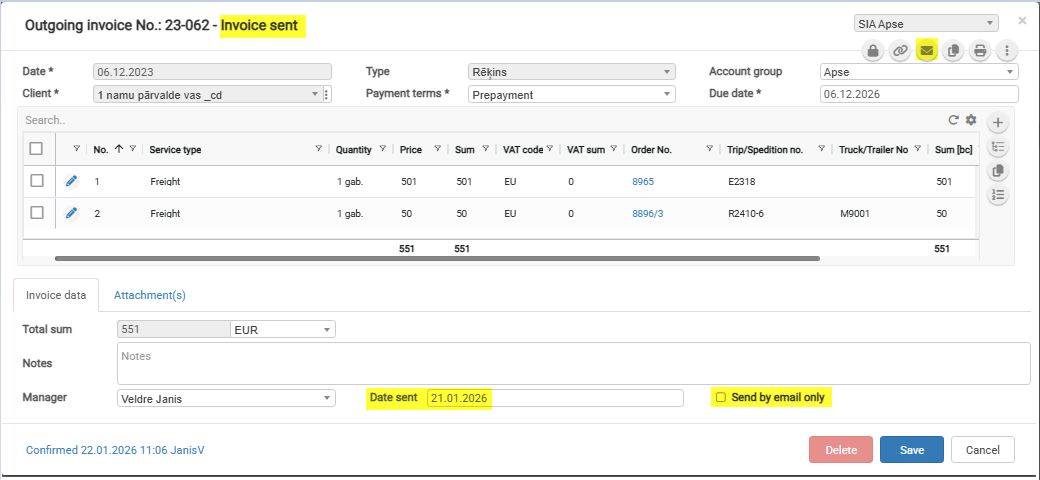
Invoice "Date sent"
This will answer the question of when the Invoice “Date sent” is set automatically and when the user needs to enter it manually.
The status “Invoice sent” changes automatically when a value is set in the Invoice field “Date sent.”
The “Date sent” field is set automatically when the “Send by email only” checkbox is selected and the invoice is sent by email.
The “Send by email only” checkbox value is set automatically when generating an invoice from an order.
The checkbox value depends on the “Send invoices” field value.
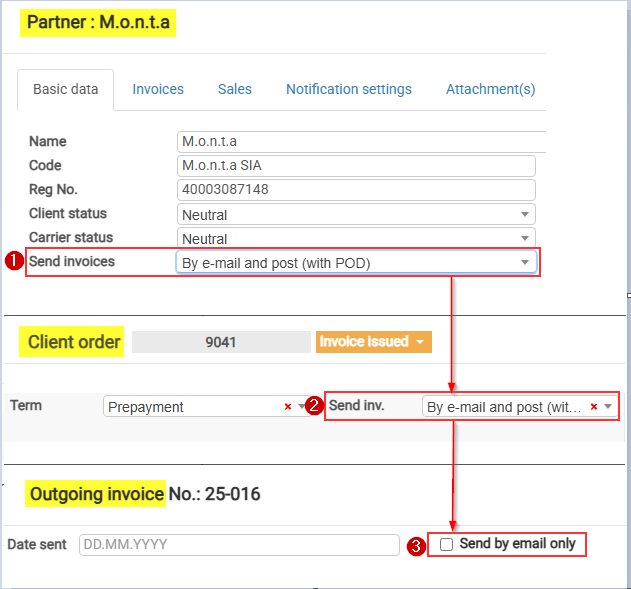
Send invoices values marked with “*” set the “Send by email only” checkbox value automatically:
-
By e-mail (with POD) *
-
By post (with POD)
-
By e-mail and post (with POD)
-
Don’t send (Self-billing) *
-
Download in client portal *
-
By e-mail (invoice upon delivery, second time with POD)
-
By e-mail (without POD) *
-
Upload to the customer portal together with POD
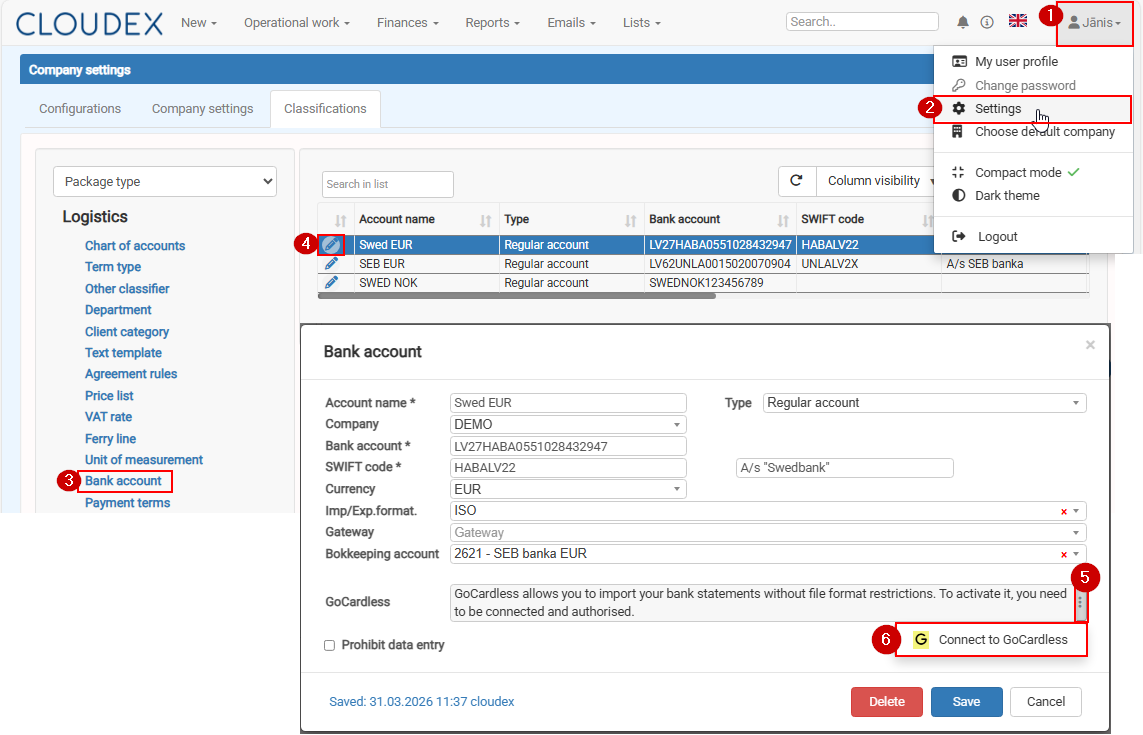
How to connect your bank account with GoCardless
To enable automatic bank statement downloads (up to 3 times per day), you need to connect your bank account with GoCardless.
Please follow the steps below: