Adding order to the trip
- Open the client order
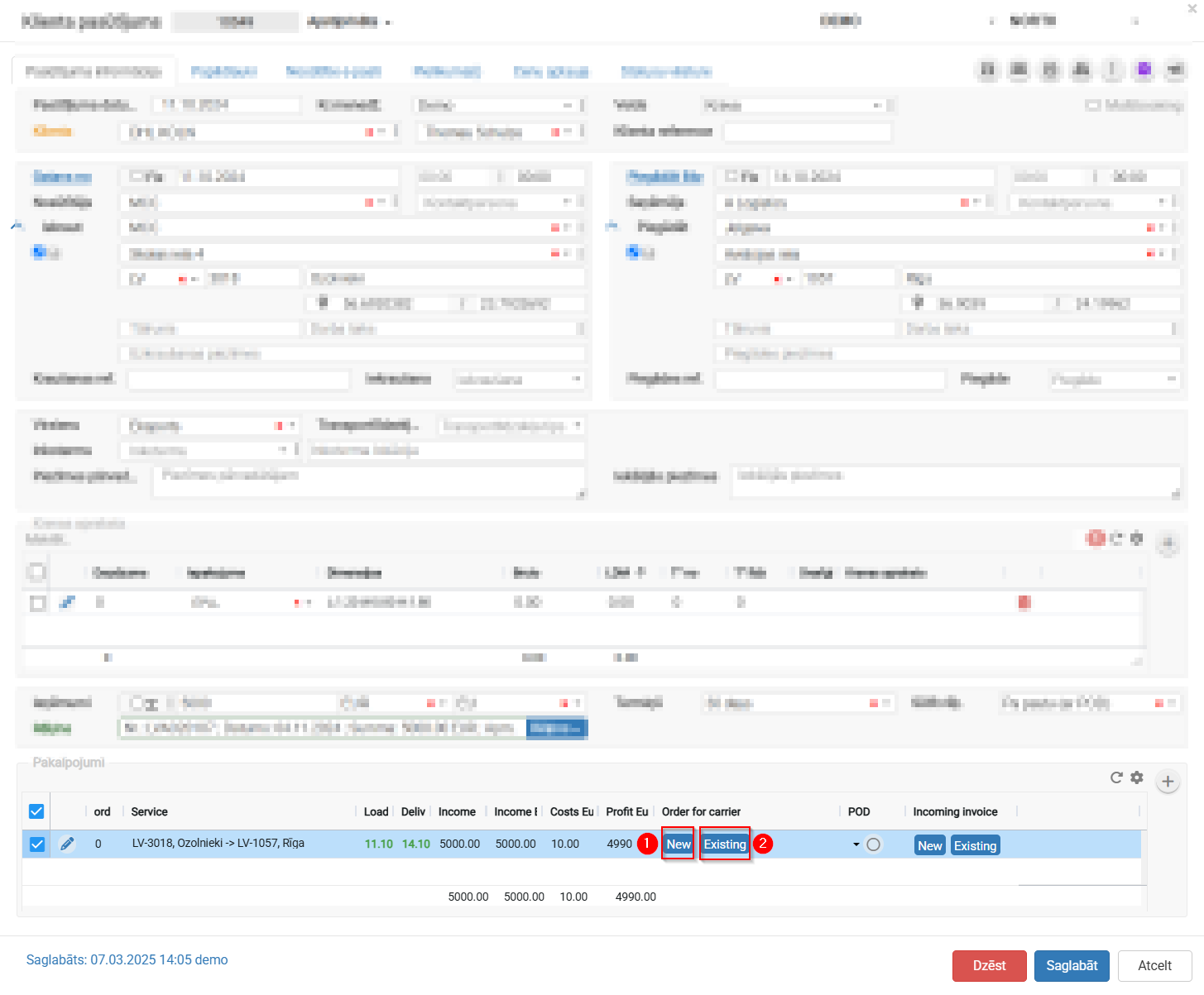
- Scroll down to the "Services" section at the bottom of the screen.
- In this table you'll see a service row with the route (e.g., LV-3018, Ozolnieki → LV-1057, Riga), loading and unloading dates, income, and costs.
- In the "Order for carrier" column there are two buttons:
- "New"
 — create a new trip/order for the carrier and assign this cargo to it.
- "Existing"
 — assign this cargo (order) to an already existing trip.
- To add the order to an existing trip:
- Click the "Existing" button.
- A window/list will open showing available trips (filterable by route, date, vehicle, etc.).
- Select the matching trip from the list and confirm.
- To create a new trip for this order:
- Click the "New" button.
- The system will create a new carrier order/trip using this client order's data (route, cargo details, dates).
- Click "Save" at the bottom of the screen to confirm the changes.