Settings
- E-mail settings
- Create google email password
- Office365: HOW TO GET TenantId, ClientId and ClientSecret
- Microsoft email configuration
- Order conditions update
- Set up Office365 e-mail
- HOW TO CHANGE APPLICATION Callback URL in Azure Portal
E-mail settings
To send emails from Cloudex TMS:
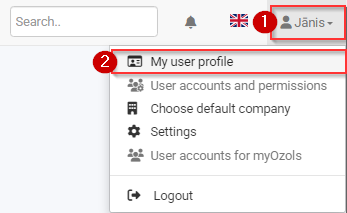
1) Click on the Your User Name icon
2) Select the "My Profile" menu
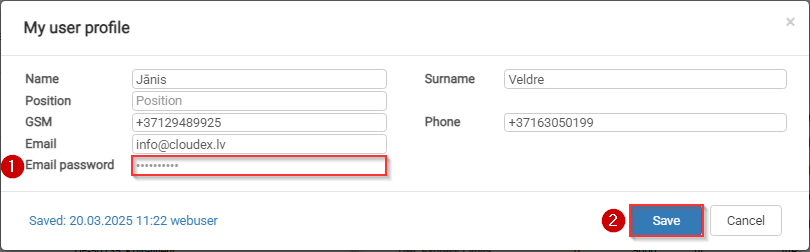
In the "Email password" field:
1) Enter your email password
2) Click the "Save" button
Create google email password
1) Open google account and login:
https://myaccount.google.com/
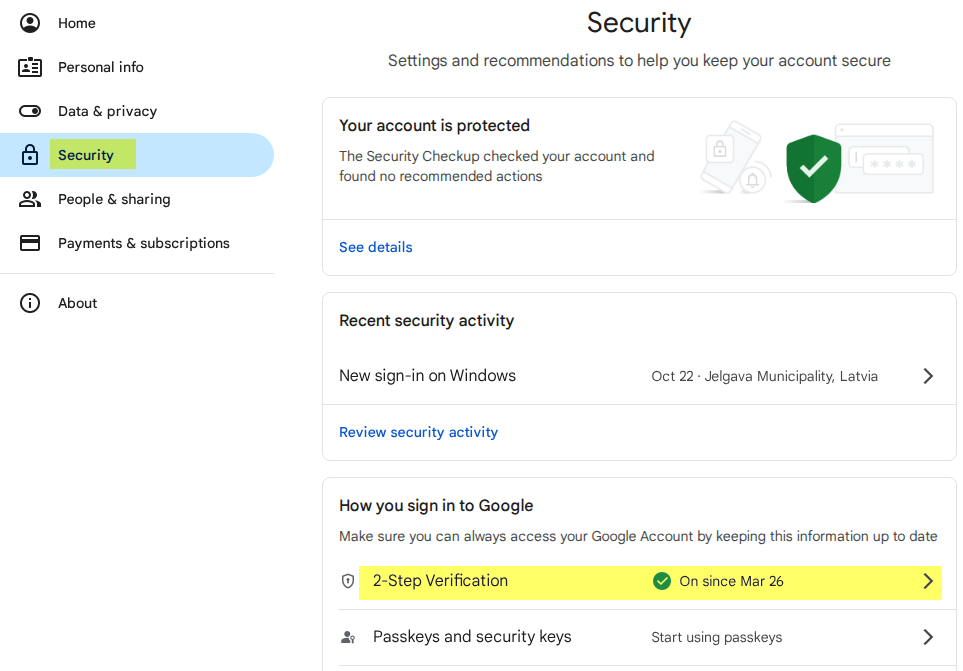
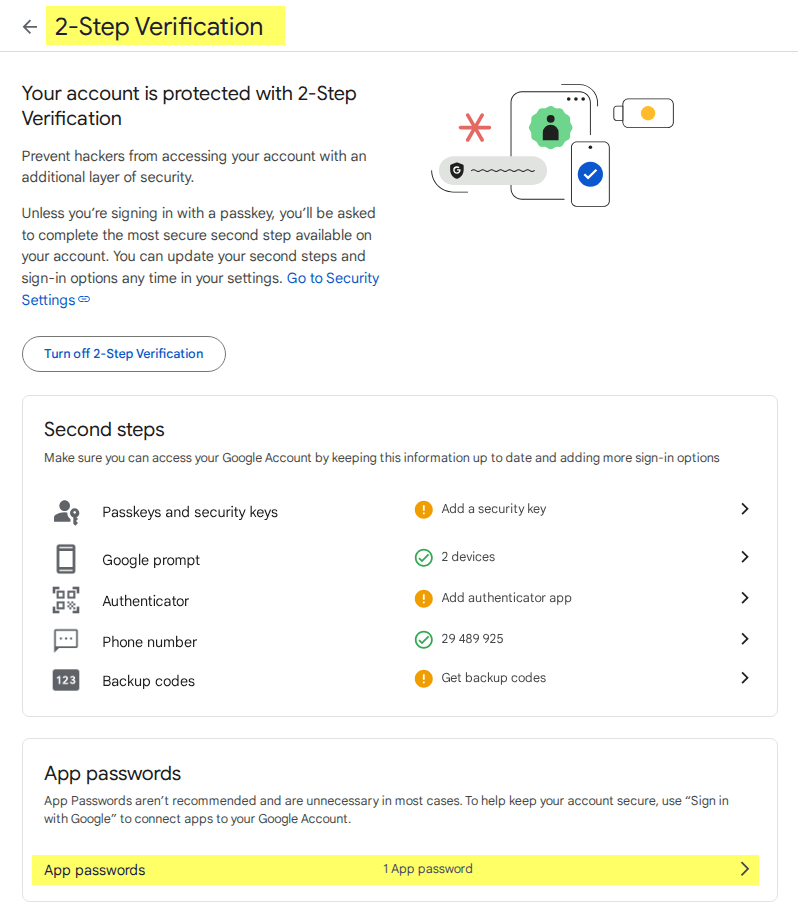
3) Ieslēgt "2-pakāpju verifikāciju / 2-Step verification"
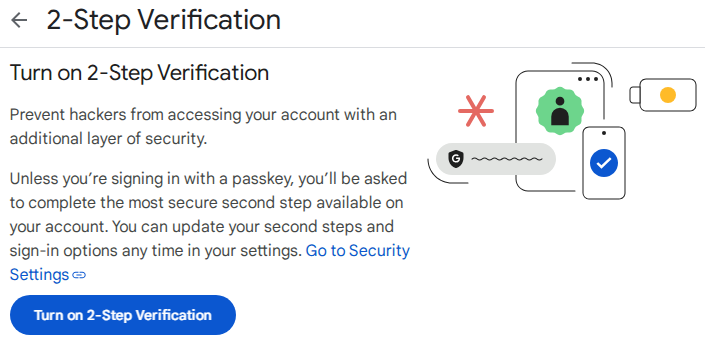
4) Create a password/key for emails
If there is no "App passwords" section in the Two-step verification / 2-step verification section, you must exit the page and re-enter it. Or use the link https://myaccount.google.com/apppasswords
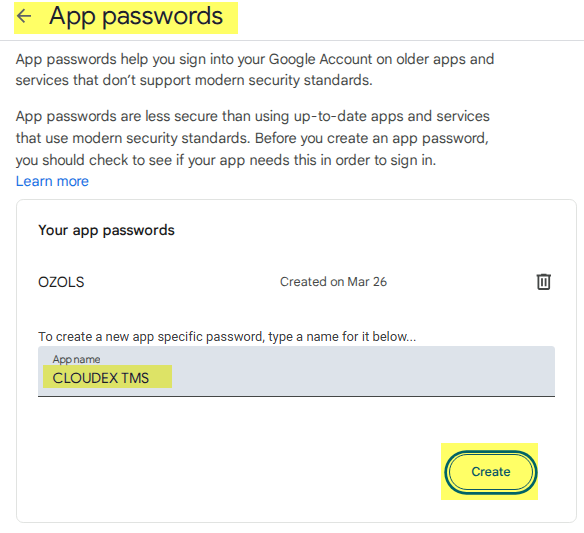
5) Create password
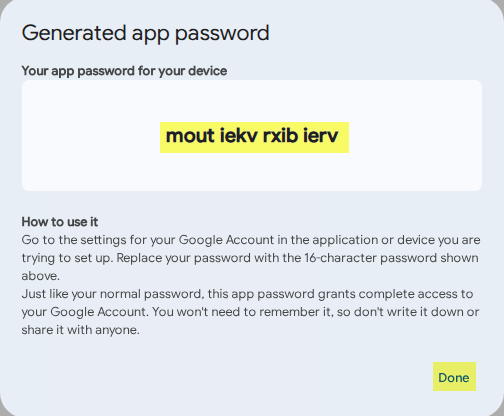
6) Copy new password and enter it in OZOLS or CLOUDEX TMS
Instructions for entering your email password in Ozols: https://doc.ozols.lv/books/ozols-tms-english/page/5-e-mail-settings
Instructions for entering your email password in CLOUDEX TMS: https://doc.ozols.lv/books/cloudex-tms-english/page/e-mail-settings
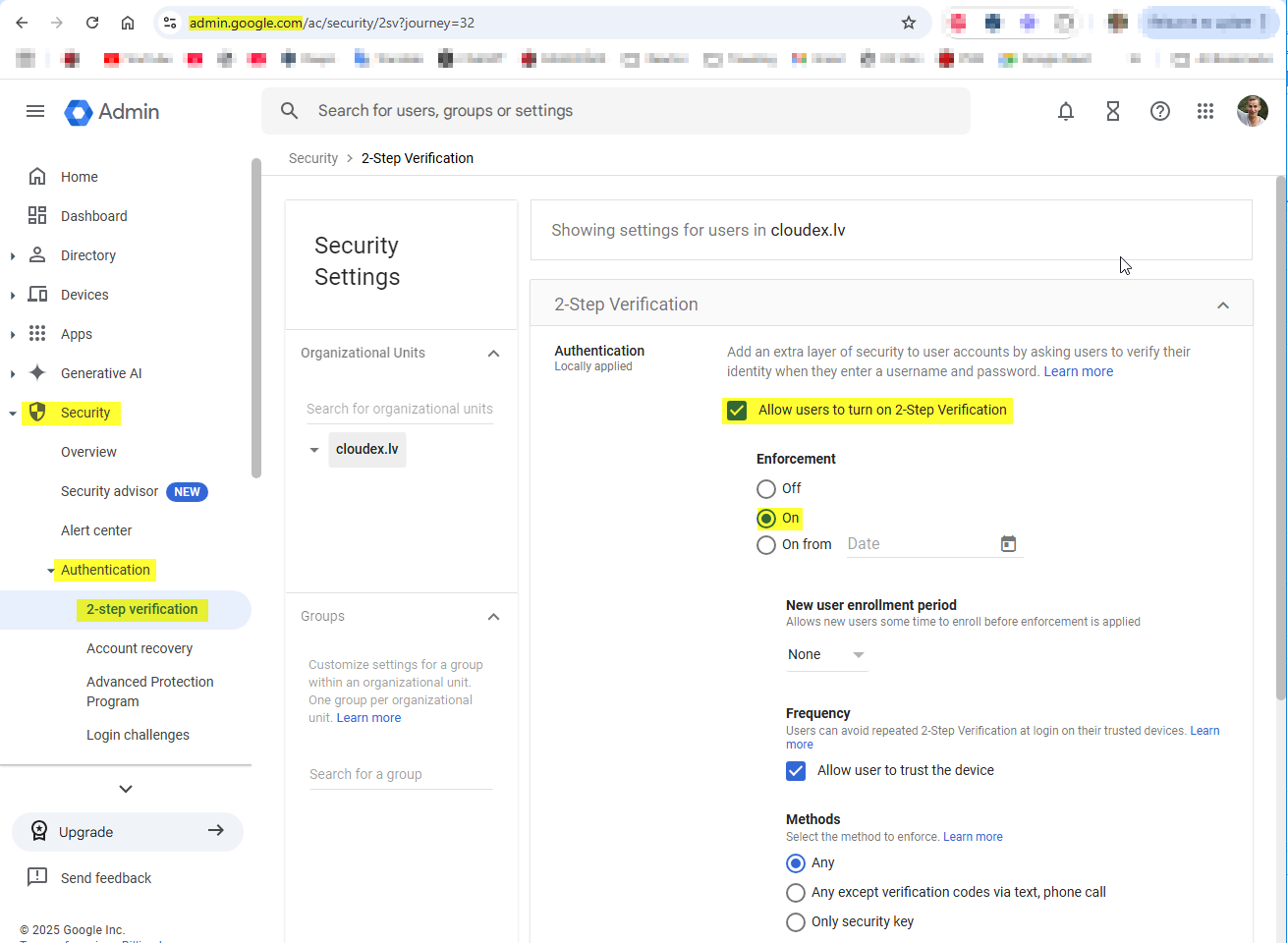
Companies must have the option enabled that is available
Office365: HOW TO GET TenantId, ClientId and ClientSecret
If you use Microsoft office 365 for email sending. Your company Microsoft admin need to get following settings from Azure AD Application
-
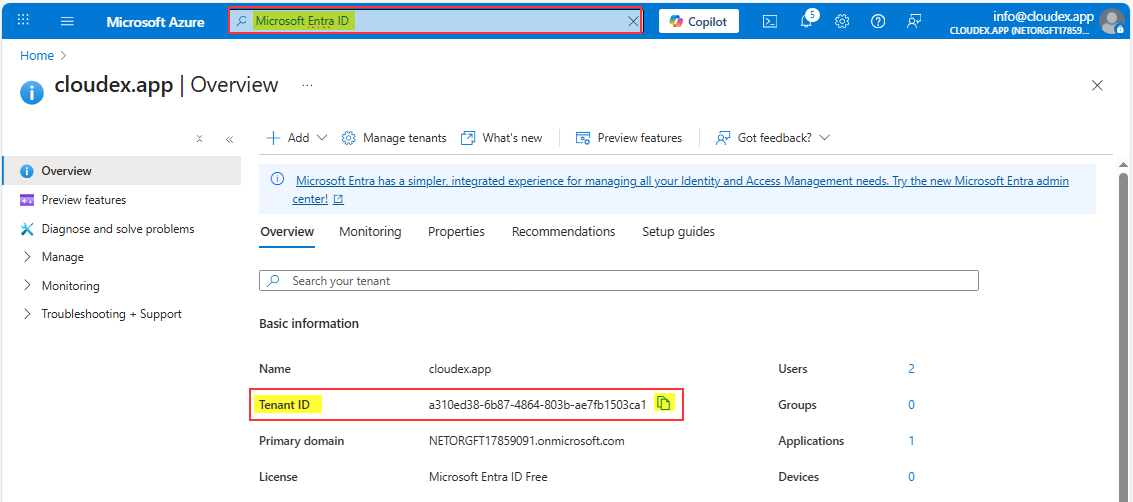
Directory (Tenant) ID
-
Application (Client) ID
-
Client Secret Value
These three values are required for integrating CLOUDEX TMS with Microsoft Graph using OAuth2.
1️⃣ Sign in to Azure Portal
Open: https://portal.azure.comSign in with a Microsoft 365 Global Admin or Application Administrator account.
2️⃣ Open “Microsoft Entra ID” (Azure AD)
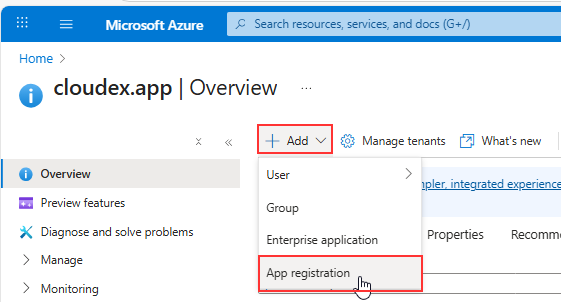
3️⃣ Create a new App Registration
| Field | Value |
|---|---|
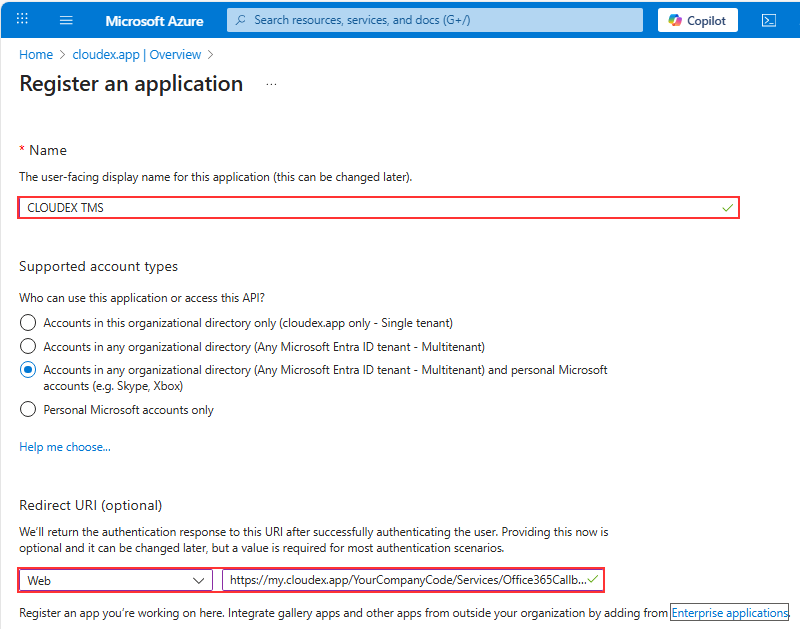
| Name | CLOUDEX TMS Email Integration (or any name) |
| Supported account types | ✔️ Accounts in any organizational directory (multitenant) |
| Redirect URI |
Select Web → Enter your redirect:
1) Replace 2) Redirect URL is case-sensitive |
Click Register.
4️⃣ Get the Tenant ID and Client ID
After creation, you will be redirected to the app’s Overview page.
Here you will see:
✔ Directory (Tenant) ID
✔ Application (Client) ID
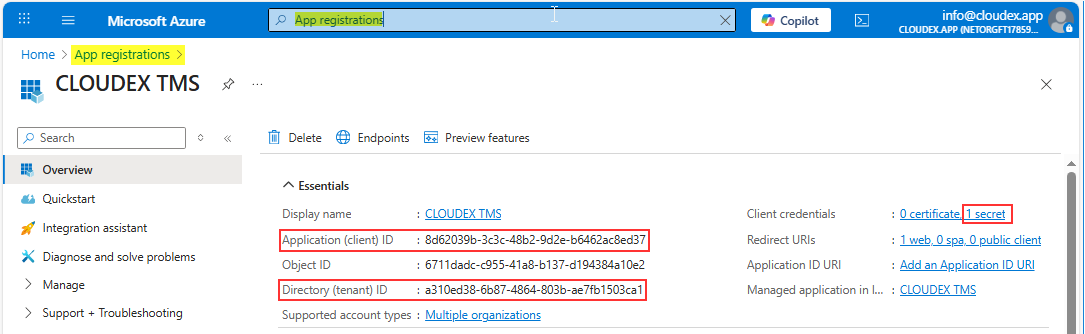
You already have 2/3 values.
5️⃣ Create Client Secret
-
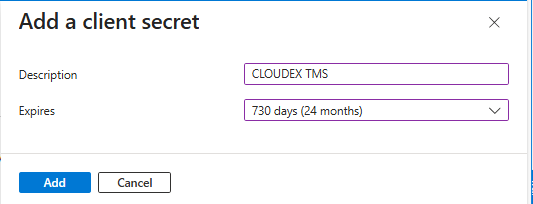
Click New client secret
-
Enter a name:
CLOUDEX Secret -
Choose expiration:
-
6 months (not recommended)
-
12 months
-
24 months (recommended)
-
Or “Custom”
-
-
Click Add
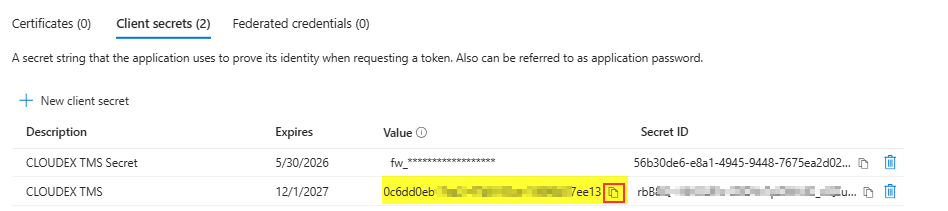
Copy the Client Secret VALUE immediately.
You will never be able to see it again later.
Store it securely (Azure Key Vault, password manager, etc).
Now you have:
-
ClientId
-
TenantId
-
ClientSecret Value
6️⃣ Add Required API Permissions
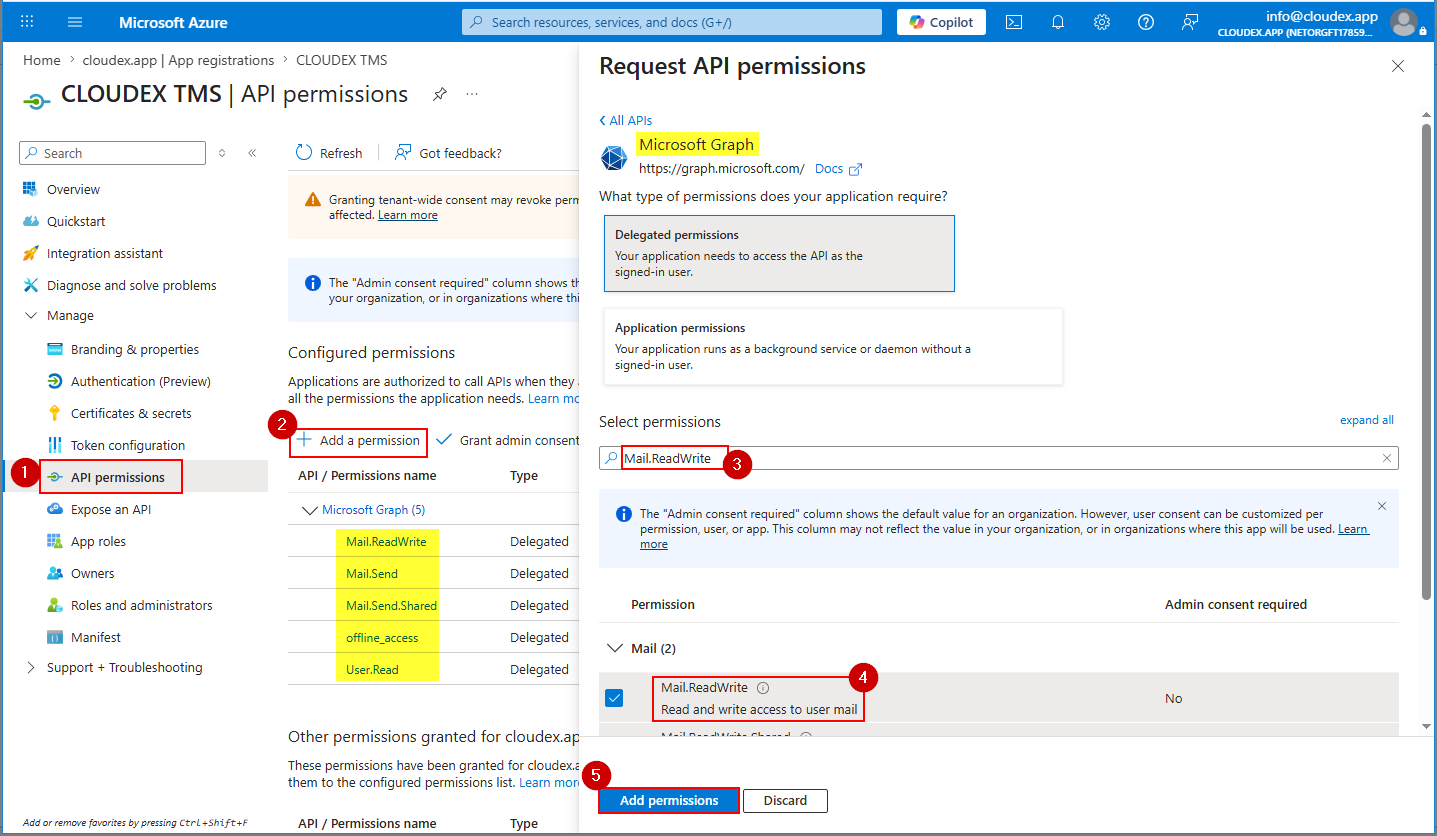
Click:
-
Add a permission
-
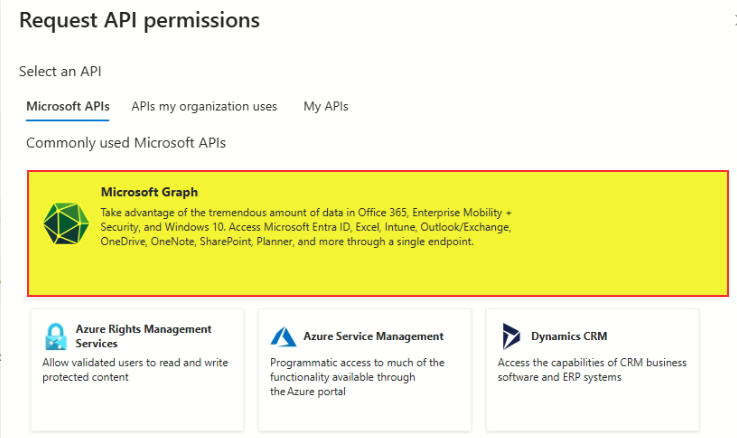
Microsoft Graph
-
Delegated permissions
Search + select:
✔ Mail.Send
✔ Mail.ReadWrite
✔ User.Read
✔ offline_access
Then click Add permissions.
Then click Grant admin consent.
Can be in new interface need to choose Microsoft Graph API
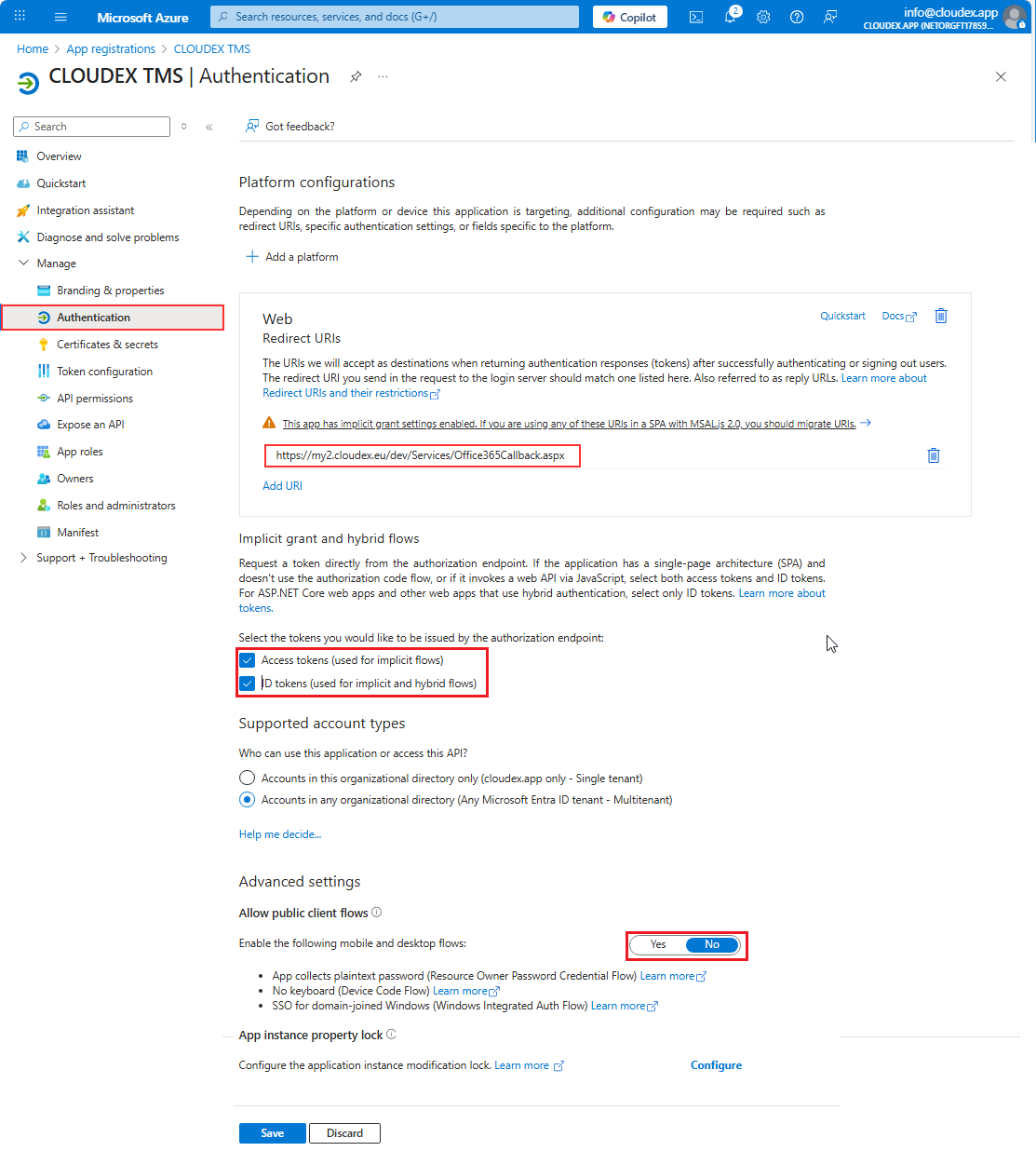
7️⃣ Final Check: Authentication Settings
Ensure:
✔ Your redirect URI is correct
✔ “Allow public client flows” is OFF
✔ “Access tokens” and “ID tokens” are ON
🎉 DONE — Values ready to use
You now have everything:
| Parameter | Where to find it |
|---|---|
| TenantId | App → Overview → Directory (tenant) ID |
| ClientId | App → Overview → Application (client) ID |
| ClientSecret | App → Certificates & Secrets → Value |
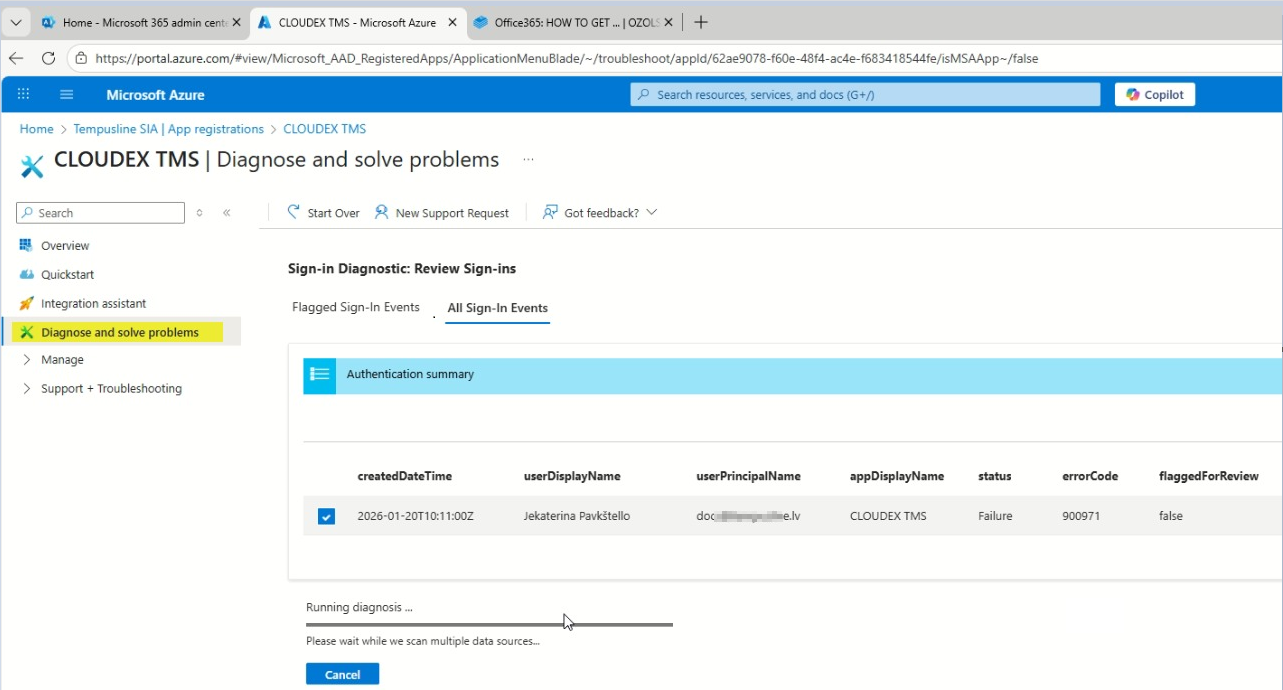
Problem solution
In case you have any problems sending out emails from CLOUDEX TMS or Ozols you can run "Diagnose and solve problems" tool
Microsoft email configuration
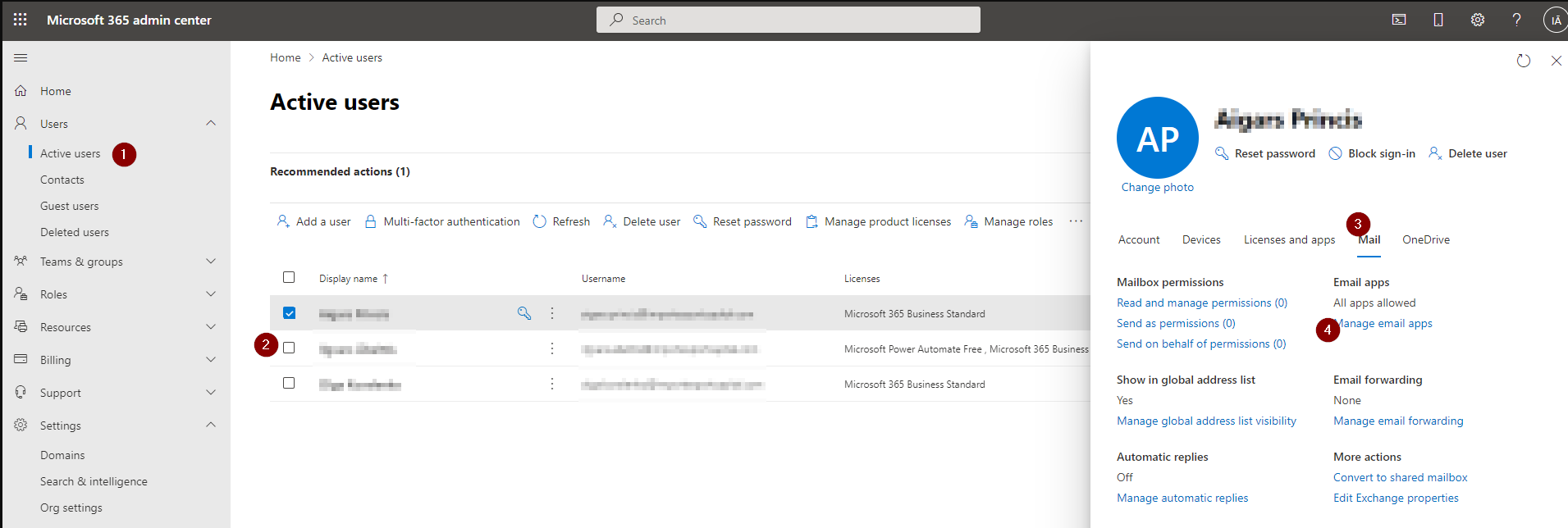
1. Enable “Authenticated SMTP” for the mailbox
Open the Microsoft 365 Admin Center: https://admin.microsoft.com
Steps to enable Authenticated SMTP
2. Create an app password (if MFA is enabled)
If Multi-Factor Authentication (MFA) is enabled for the mailbox you use (recommended), SMTP cannot use your normal password. In that case you must create a special app password and use it in CLOUDEX TMS.
Instruction to generate an app password
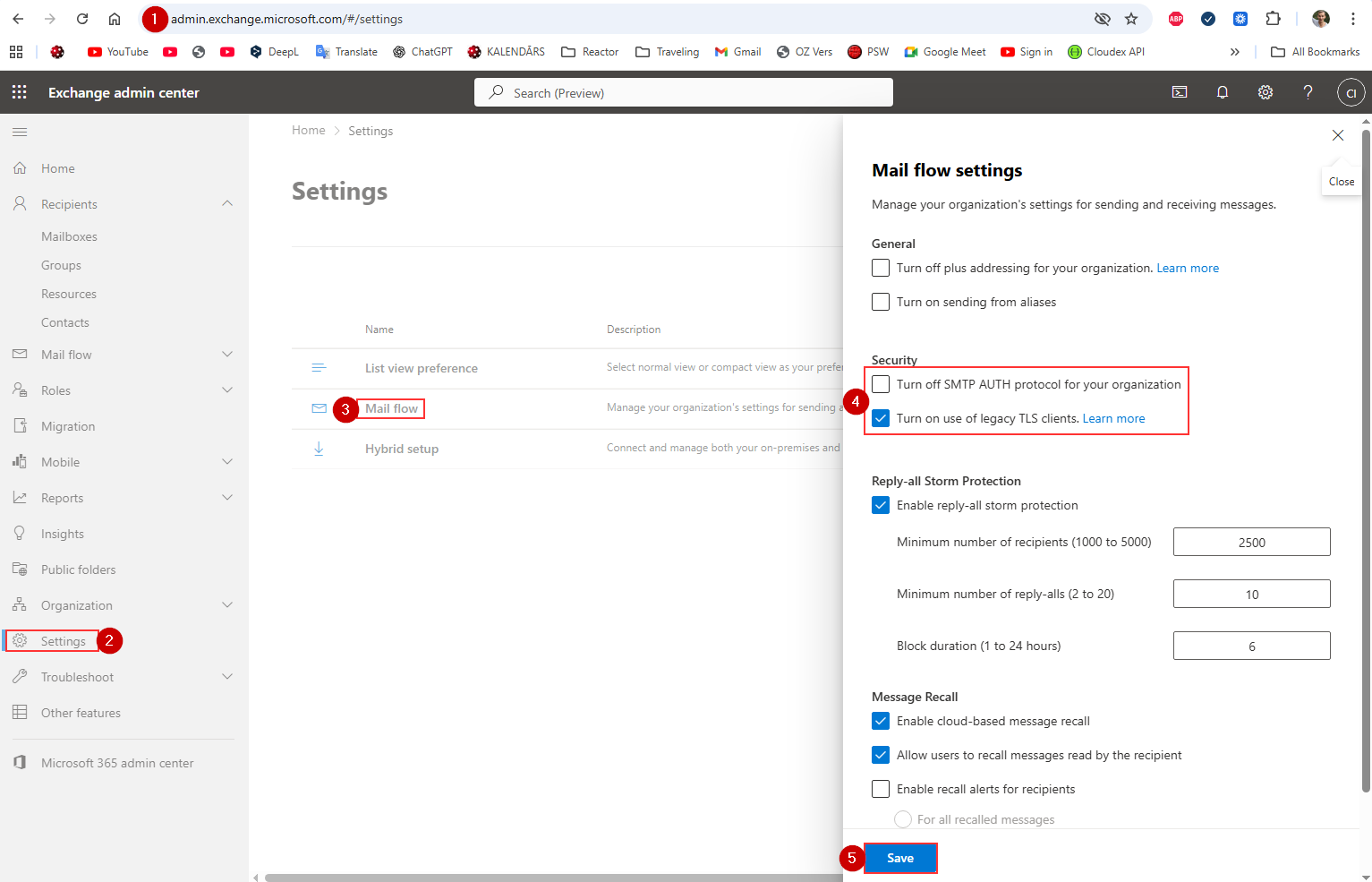
❗ What to do if “Authenticated SMTP” switch does NOT appear
- Turn off Checkbox "Turn off SMTP AUTH protocol for your organization""
- Turn on use of old legacy TLS clients.
- After enabling, wait 3–5 minutes, then check the user mailbox again.
Confirm the mailbox type (SMTP is NOT available for some accounts)
The Authenticated SMTP switch is available ONLY for:
-
User mailboxes with Exchange Online Plan 1 or 2
-
Shared mailboxes
-
Microsoft 365 E3/E5 Business Standard/Business Premium accounts
It will NOT appear for:
❌ Mailboxes with no Exchange license
❌ Accounts converted to Microsoft 365 Groups
❌ Mailboxes that were soft-deleted or recently restored
❌ Resource mailboxes (Room / Equipment)
How to check:
In Microsoft 365 Admin Center:
Users → Active users → Select user → Licenses and Apps
Make sure:
✔ Exchange Online is enabled
If Exchange Online is missing → SMTP will NOT be available.
Ensure modern authentication SMTP is not forced
Microsoft sometimes blocks SMTP for users with strict conditional access.
Check these items:
-
Conditional Access policy requiring MFA for all protocols
-
Legacy auth blocked at the tenant level
-
Security defaults enabled (this disables SMTP)
To check Security Defaults:
-
Go to Azure Portal
https://portal.azure.com -
Search for Azure Active Directory
-
Open Properties
-
Click Manage Security Defaults
-
If Security defaults = Enabled, you must turn it OFF to allow SMTP.
After disabling, wait up to 15 minutes, then check Manage Email Apps again.
If none of the above works – your tenant may have SMTP permanently disabled
Microsoft has been turning off SMTP AUTH for security reasons.
Admins must manually re-enable it per mailbox.
To force-enable for a specific mailbox (Admin only):
-
Navigate to:
Users → Active Users → select user → Mail → Email apps → Manage -
If still missing, enable via PowerShell:
Set-CASMailbox -Identity user@domain.com -SmtpClientAuthenticationEnabled $true
(Admins only — if customer cannot run PowerShell, you can give them this line to pass to their IT provider.)
Summary: Why SMTP may not appear
| Reason | Solution |
|---|---|
| Tenant-wide SMTP disabled | Enable under Exchange Admin Center → Settings → Mail flow |
| New UI hides the option | Use Classic Exchange Admin Center (ECP) |
| No Exchange Online license | Add a license |
| Security Defaults enabled | Disable Security Defaults |
| Legacy auth blocked by Conditional Access | Update policies |
| Mailbox type unsupported | Use a licensed user or shared mailbox |
| Needs PowerShell | Run Set-CASMailbox |
Order conditions update
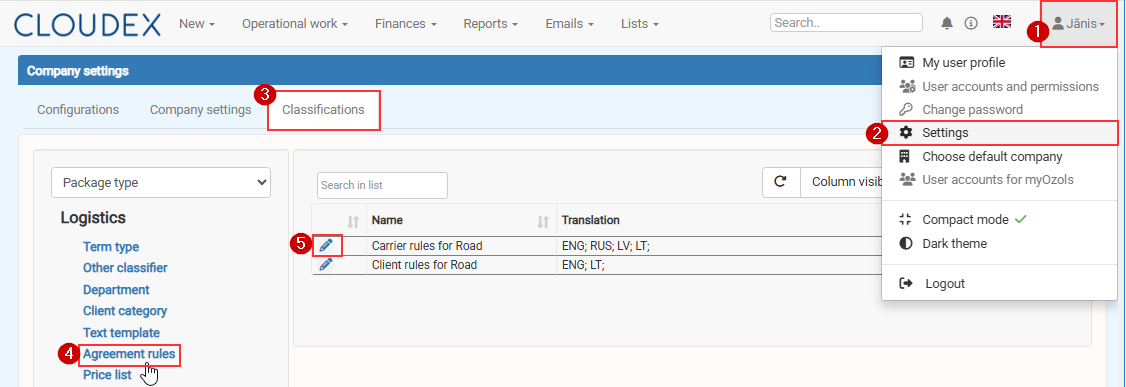
In order to edit Order for carrier rules or Order for Client rules Click on Your name > Settings > Classifications > Agreement rules > Edit
Set up Office365 e-mail
If your email provider is Microsoft Office365 You need o set up email sending following this instruction
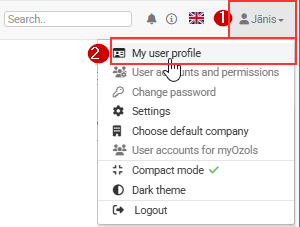
1) Click on your name
2) Choose My user profile
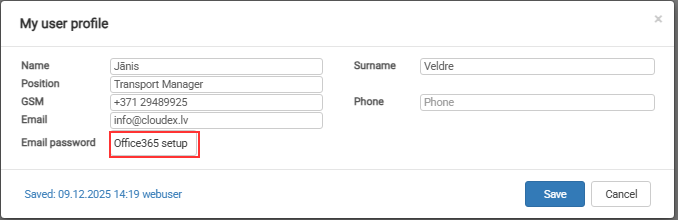
Then press command button [Connect to Microsoft]
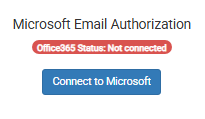
Login with your email and follow further instructions
HOW TO CHANGE APPLICATION Callback URL in Azure Portal
1️⃣ Open Azure Portal
Go to: https://portal.azure.com
Sign in using a Global Administrator or Application Administrator account.
2️⃣ Open Microsoft Entra ID
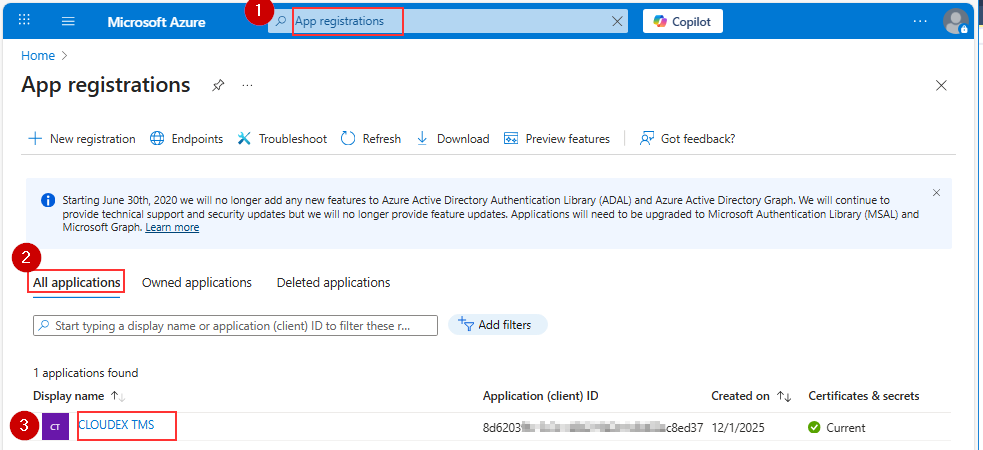
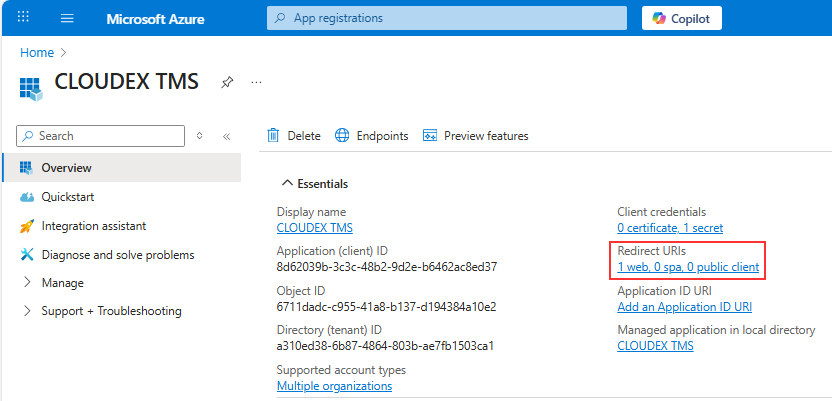
Choose Redirect URLs
!!!! In YourCompanyCode you should place your company code https://my.cloudex.app/YourCompanyCode/Services/Office365Callback.aspx
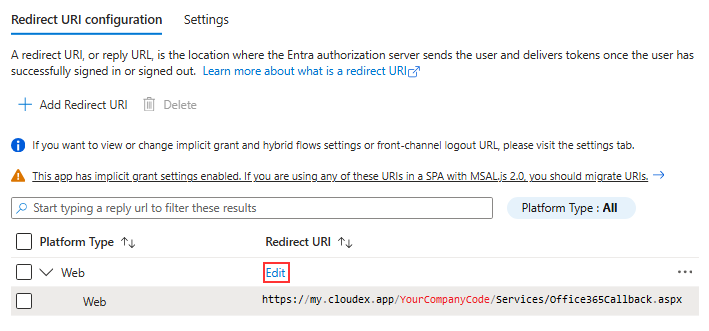
Redirect URL should be under Web NOT under SIngle-application