
Microsoft email configuration
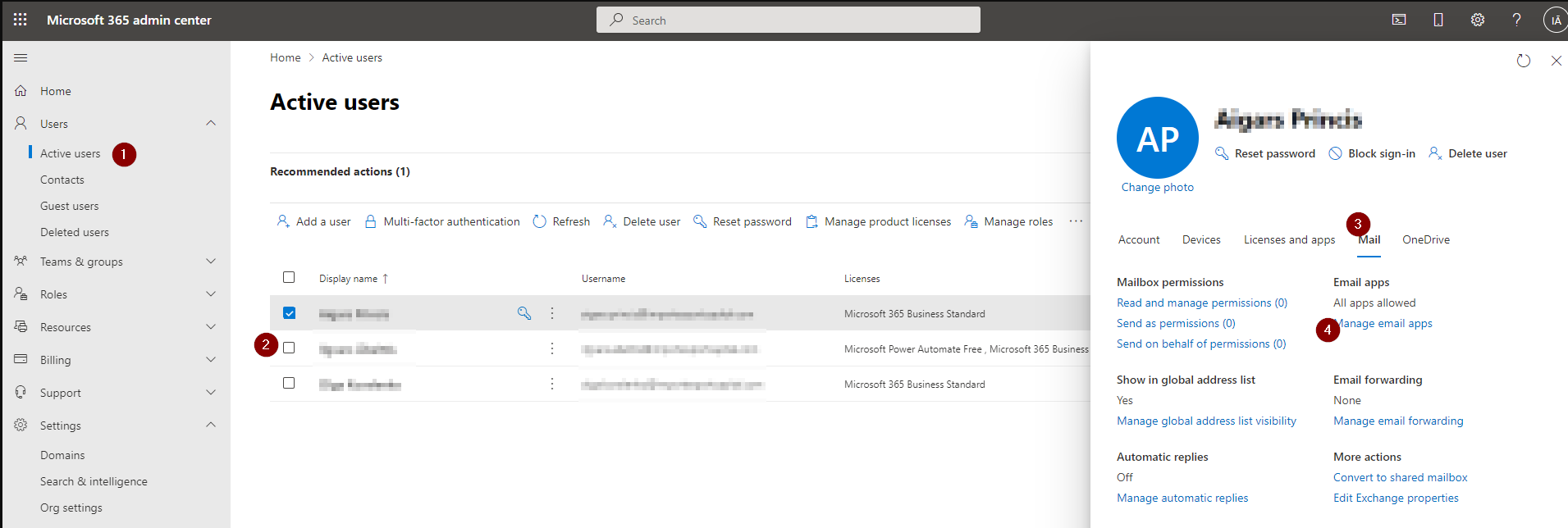
1. Enable “Authenticated SMTP” for the mailbox
Open the Microsoft 365 Admin Center: https://admin.microsoft.com
Steps to enable Authenticated SMTP
2. Create an app password (if MFA is enabled)
If Multi-Factor Authentication (MFA) is enabled for the mailbox you use (recommended), SMTP cannot use your normal password. In that case you must create a special app password and use it in CLOUDEX TMS.
Instruction to generate an app password
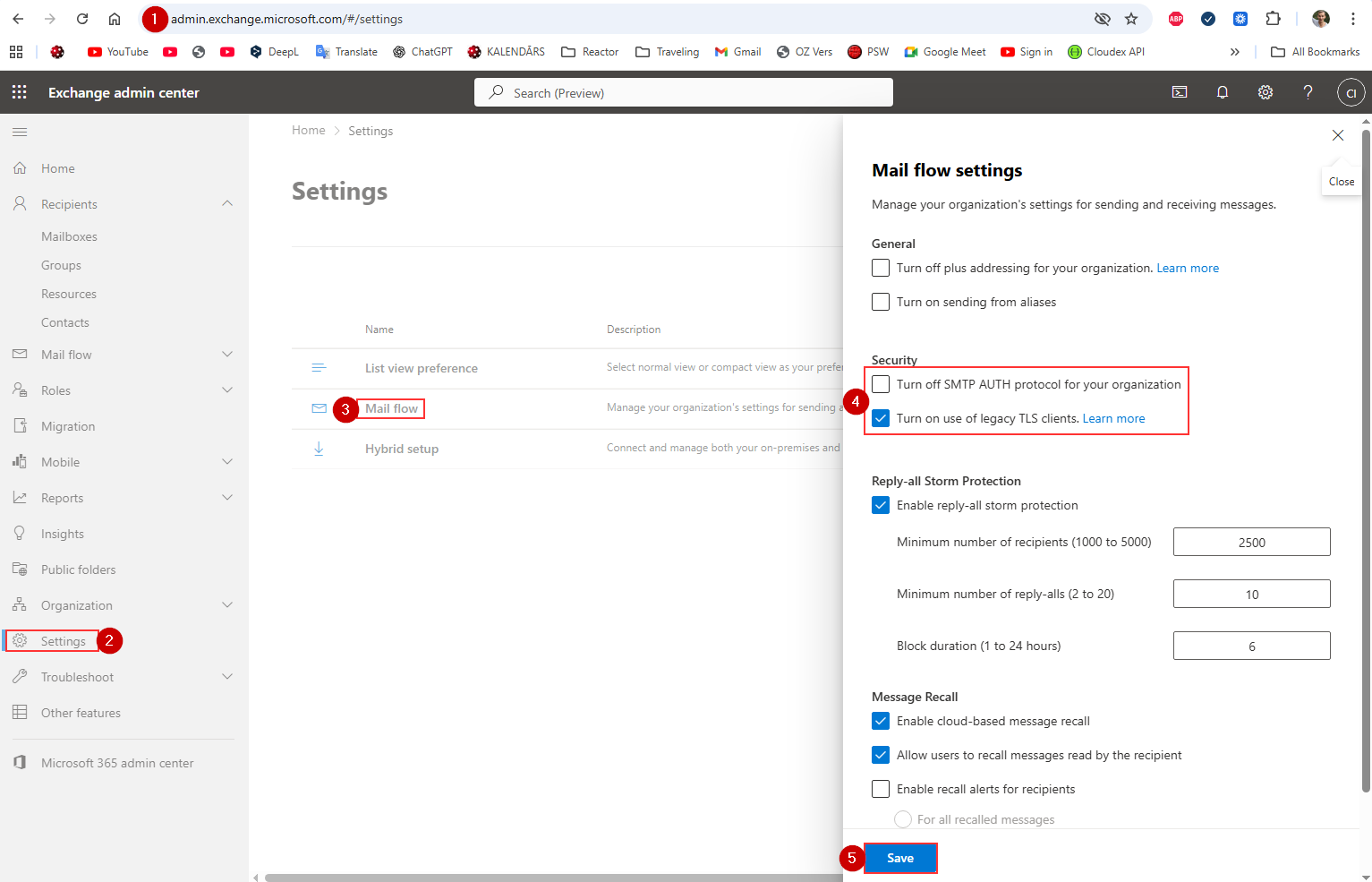
❗ What to do if “Authenticated SMTP” switch does NOT appear
- Turn off Checkbox "Turn off SMTP AUTH protocol for your organization""
- Turn on use of old legacy TLS clients.
- After enabling, wait 3–5 minutes, then check the user mailbox again.
Confirm the mailbox type (SMTP is NOT available for some accounts)
The Authenticated SMTP switch is available ONLY for:
-
User mailboxes with Exchange Online Plan 1 or 2
-
Shared mailboxes
-
Microsoft 365 E3/E5 Business Standard/Business Premium accounts
It will NOT appear for:
❌ Mailboxes with no Exchange license
❌ Accounts converted to Microsoft 365 Groups
❌ Mailboxes that were soft-deleted or recently restored
❌ Resource mailboxes (Room / Equipment)
How to check:
In Microsoft 365 Admin Center:
Users → Active users → Select user → Licenses and Apps
Make sure:
✔ Exchange Online is enabled
If Exchange Online is missing → SMTP will NOT be available.
Ensure modern authentication SMTP is not forced
Microsoft sometimes blocks SMTP for users with strict conditional access.
Check these items:
-
Conditional Access policy requiring MFA for all protocols
-
Legacy auth blocked at the tenant level
-
Security defaults enabled (this disables SMTP)
To check Security Defaults:
-
Go to Azure Portal
https://portal.azure.com -
Search for Azure Active Directory
-
Open Properties
-
Click Manage Security Defaults
-
If Security defaults = Enabled, you must turn it OFF to allow SMTP.
After disabling, wait up to 15 minutes, then check Manage Email Apps again.
If none of the above works – your tenant may have SMTP permanently disabled
Microsoft has been turning off SMTP AUTH for security reasons.
Admins must manually re-enable it per mailbox.
To force-enable for a specific mailbox (Admin only):
-
Navigate to:
Users → Active Users → select user → Mail → Email apps → Manage -
If still missing, enable via PowerShell:
Set-CASMailbox -Identity user@domain.com -SmtpClientAuthenticationEnabled $true
(Admins only — if customer cannot run PowerShell, you can give them this line to pass to their IT provider.)
Summary: Why SMTP may not appear
| Reason | Solution |
|---|---|
| Tenant-wide SMTP disabled | Enable under Exchange Admin Center → Settings → Mail flow |
| New UI hides the option | Use Classic Exchange Admin Center (ECP) |
| No Exchange Online license | Add a license |
| Security Defaults enabled | Disable Security Defaults |
| Legacy auth blocked by Conditional Access | Update policies |
| Mailbox type unsupported | Use a licensed user or shared mailbox |
| Needs PowerShell | Run Set-CASMailbox |