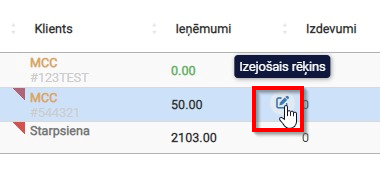
Current Orders
- Customer Order Classification
- Current Order Statuses
- Additional Options Without Opening the Order
1. Customer Order Classification
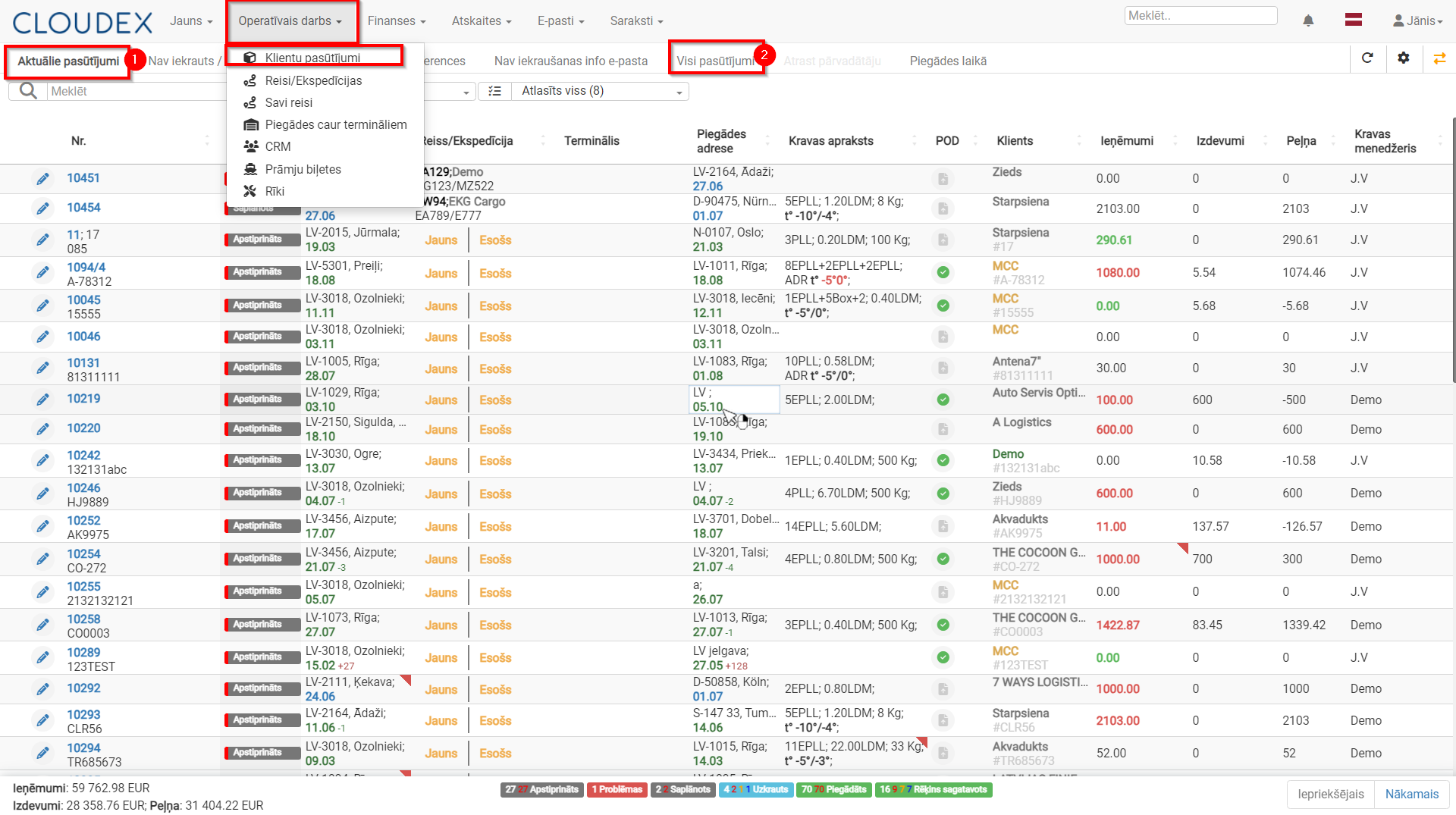
Customer orders are divided into 2 groups:
- Current Orders – this list displays all orders that are in progress (with various statuses). Orders remain in this section until the invoice has been sent.
- All Orders – this section also includes completed orders.
2. Current Order Statuses
- New – status assigned when the customer adds a new shipment through the customer portal.
- Confirmed – the manager confirms the shipment added by the customer, or the manager creates a new shipment manually.
- Planned – when the shipment is assigned to a trip/route.
- Loaded – when the shipment has been loaded.
- Delivered – when delivery of the shipment is confirmed.
- Invoice Prepared – after delivery, the invoice is prepared and issued.
- Issues – this status appears when something does not go as planned. It is highlighted in red to draw the manager’s attention.
2.1. Next Order Status
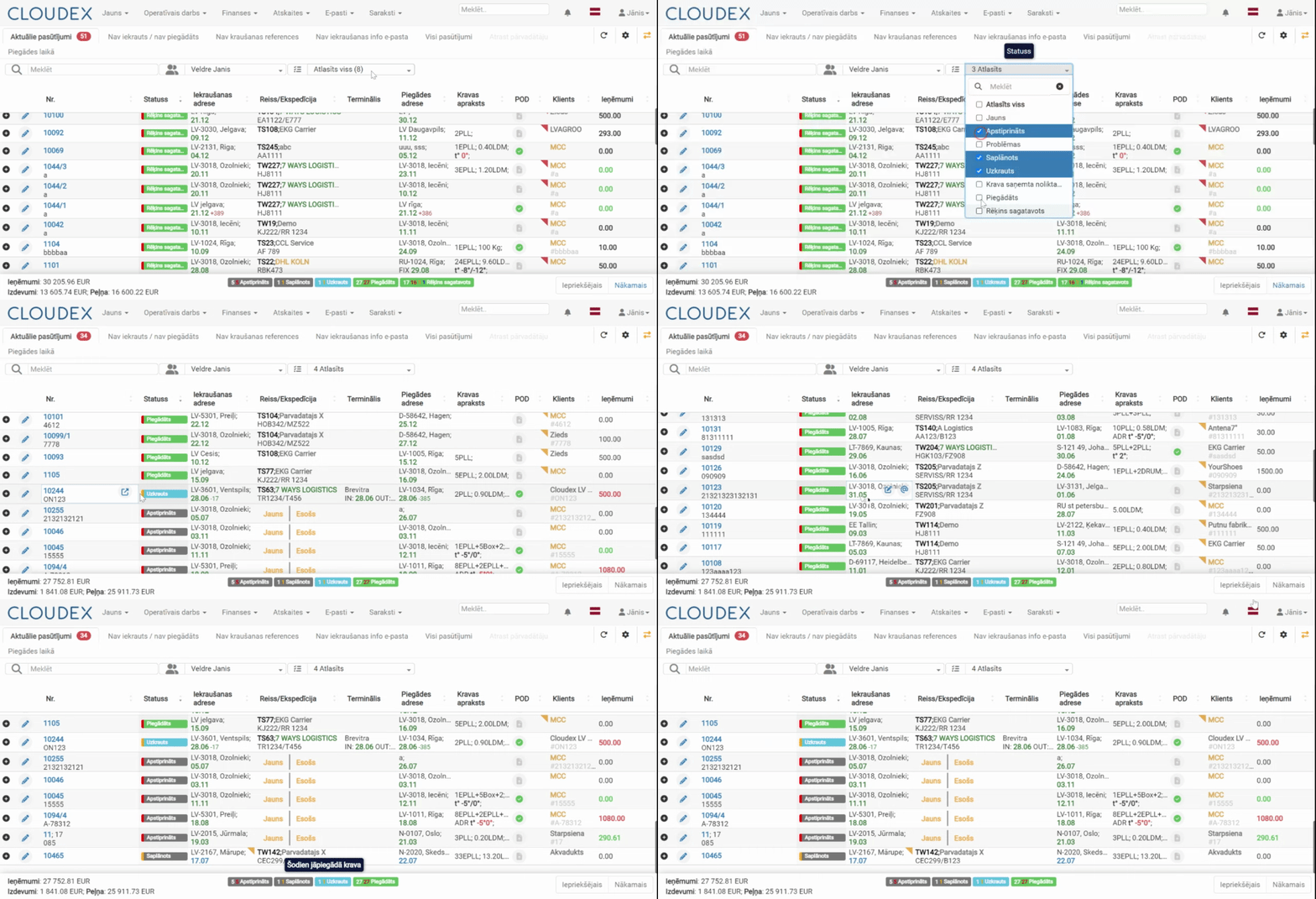
- The “border” of the order status may be highlighted in blue, green, orange, or red, indicating the status of the next required action.
- A shipment status summary is available below the table. Hovering the mouse cursor over the number of each color displays an explanation, for example: “Delayed shipment delivery”.

Under the “Status” column, when hovering over the current shipment status with the mouse cursor, the system displays the next sequential action that needs to be performed.
3. Additional Options Without Opening the Order
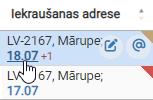
- If the loading date is displayed in blue, it means the shipment has not yet been loaded. Clicking the date opens a window where you can change the planned loading date.
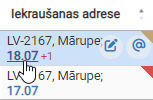
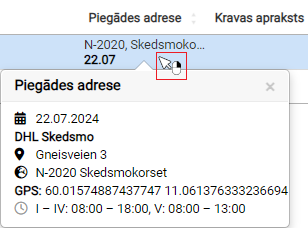
- If, when hovering over information in a column, you see the icon, then right-clicking will display additional information. This option is available in several columns, such as:
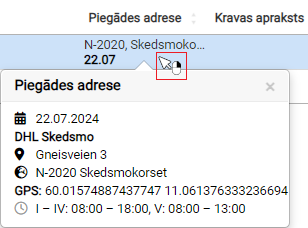
- Loading Address
- Delivery Address
- Customer
- Shipment Description
- etc.
- In the POD* column, it is possible to add delivery confirmation documents for the order.
- If a document icon with a red corner appears in the column, it means POD documents need to be added.
* POD – Proof Of Delivery (CMR; B/L; AWB; SMGS)
The invoice issuing description is available here:
OZOLS documentationOutgoing invoices can also be opened through the current orders list, for example, to quickly enter the sending date.